Input parameters can be defined in this tab.
Feature |
Definition |
|---|---|
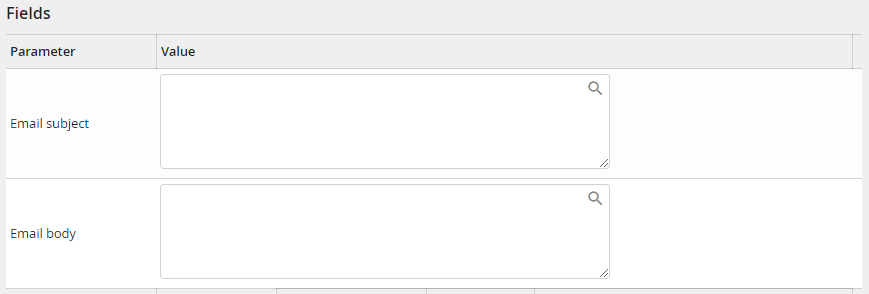
E-mail subject |
E-mail subject, which is send to the external recipient by eSignAnyWhere. If no subject is indicated a default subject is used. |
E mail text |
E-mail text, which is send to the external recipient by eSignAnyWhere. If no text is indicated a default text is used. |
Feature |
Definition |
|---|---|
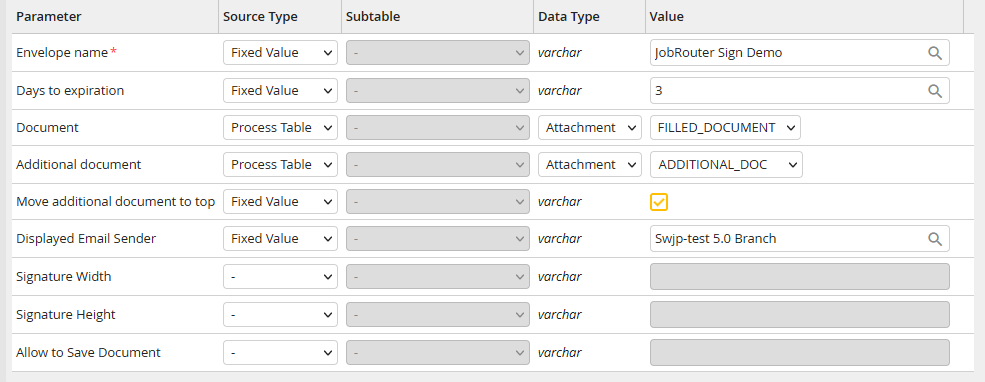
Envelope subject |
Envelope subject, which is displayed in the information e-mail of eSignAnyWhere. |
Validity (days) |
Signature operation order validity in days. After expiration the document may not be signed any more, as long as it is not reactivated by an administrator or via the process. The maximum is 28 days, a document cannot be valid for an unlimited period of time. If no value is set, the validity will be defined automatically with 28 days. |
Document |
The document to be signed, which must be in *.docx format and contains signature fields already defined in the template. So it is e.g. possible to use the same template for the JobPDF module and to insert process-specific data before it is send for signage.
If no document is attached, the selected blank template is used for signing. |
Additional Document |
Additional documents, which are going to be attached to the Word template and send also for signing. The document must be in PDF format. So it is e.g. possible to equip a PDF document, which is created by a Third party application, with a signature page (the *.docx document), and to sign it as a single document. |
Move additional document to top |
When using an additional PDF document, it can be chosen if it should be clamped ahead or behind the template document during the assembling. |
Displayed Email Sender |
The display name of the sender of the eSignAnyWhere notification email. |
Signature width |
Width of the signature field in pixels. Minimum and default (if not defined differently) is 150 px |
Signature height |
Height of the signature field in pixels. Minimum and default (if not defined differently) is 75 px |
Allow to Save Document |
If this option is enabled, the user can download the document directly from eSignAnyWhere during the signing process. He can choose between the original document and the finished, signed PDF document. |
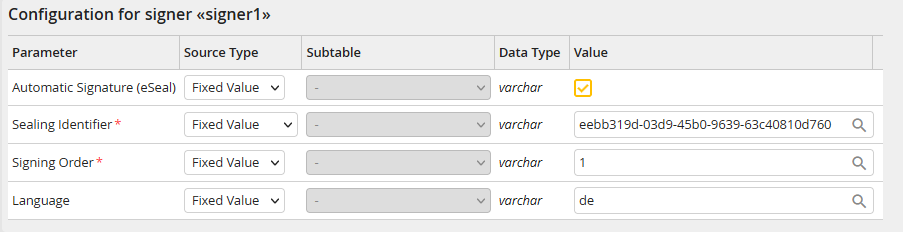
For each recognized signature field in the Word template, a signature configuration section is displayed. Thereby, the signature ID (e.g. JobSign_signer1) is extracted from the placeholder of the signature field and displayed in the configuration section title.
Please note: If the Automatic Signature (eSeal) option is enabled, all other options except for the Sealing Identifier, Signing order and Language are hidden.
Input parameter
Feature |
Definition |
|---|---|
Automatic Signatur (eSeal) |
Flag whether the eSeal functionality should be used (1, checked), or not (0, unchecked). |
Sealing Identifier |
Identifier for the seal authorized representative to be able to identify the seal. |
Order in which the signature is to be made. Given as a number from 1 to x, number 1 signs first, number 2 second, and so on. It is also possible to make several signatures at the same time by specifying the same number for these fields. |
|
Language |
Language, in which the eSignAnyWhere integration and the notification e-mail is displayed. The language must have ISO format (en, de, fr, ru, usw.). If nothing is defined, the language of the user is used for internal recipients and the JobRouter system language is used for external recipients. |
Please note: In order to use the Automatic Signature (eSeal) option, you need a valid Sealing Identifier.
