Create a new list or modify an existing list using the list overview. Click Lists in the Designer navigation menu. You will see an overview of all previously established lists.
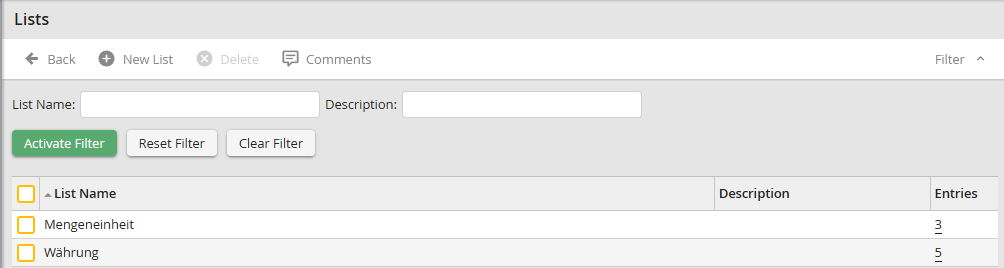
List Overview
Click New list in the action bar to create a new list, or click the name of an existing list to modify that list. In either case, the Edit list form window will be displayed.
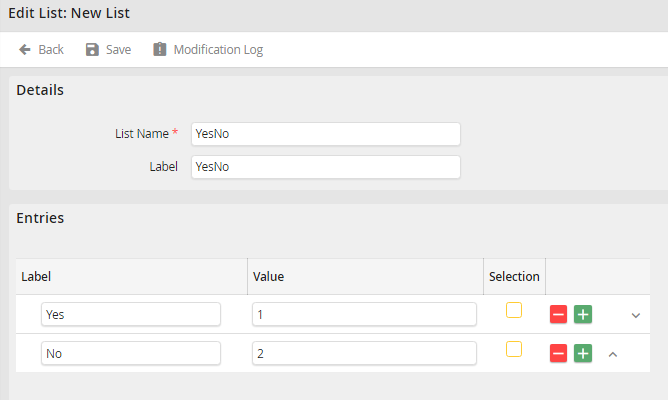
Creating or Modifying a List
Give a name to the list in the List name field.
Please note: The list name will be stored permanently in the database, and cannot be subsequently changed.
Give your list a descriptive label in the Label field. Now in the Entries section, fill in the items that will appear in the list. Click the  button to add an item and the
  button to remove an item. As you have seen with forms and subtables, you can use the arrow buttons
  and
and  to change the order of the items within the list.
Back to the entries themselves, in the Label field, type in a term that the user will see as an item in the drop-down list. In the Value field, add data to be stored as a value in the process table. That value is stored in the database in the place of the label. Use the Selection radio button to preselect one of the items in your list.
In case you added more than one language to the process, the symbol  will be available behind the label field. Click on it to translate the label into other process languages. A pop-up window will open, in which you can enter the label for all process languages. Click Save in the pop-up window to add the changes to your form. Then save your made changes by clicking Save in the action bar.
