The process analysis allows checking the process for logic errors or gaps in the documentation. In order to identify errors before the simulation and testing.
Run a process analysis
The process analysis can be found in the Top menu under the symbol  . The first time you start a process analysis, you will see the following screen.

First time process analysis
Click Start process analysis in the action bar to get a complete analysis of both errors and suspected errors contained in your process configuration. A list of all errors can be as follows.
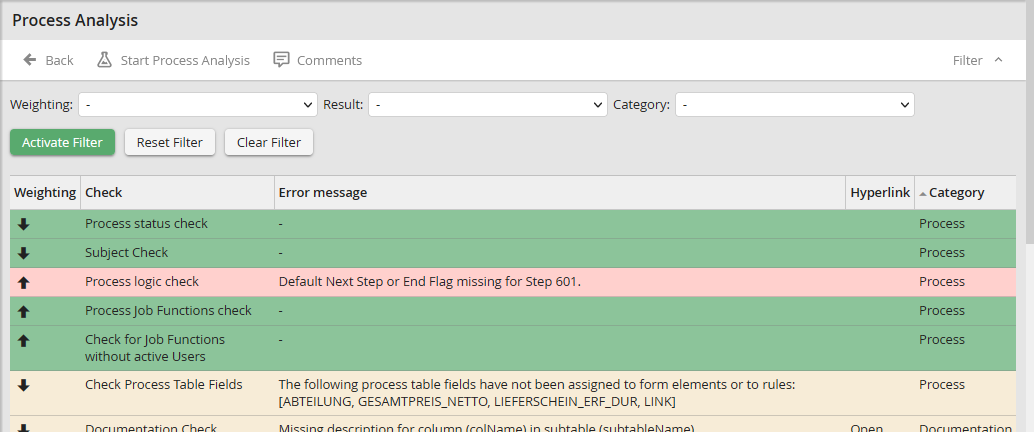
Process analysis
Thereafter, when you restart the process analysis via the Designer overview display, you get the list of errors and critical incidences right away.
The following shows a list of all analysis items .
Analysis item |
Description |
|---|---|
Test |
Shows which process configurations were analyzed. |
Weighting |
The weighting indicates the status of the analysis, if it is critical or non-critical. •Critical: The process workflow is at risk. You must correct the errors. •Uncritically: There is a warning message about a possible error, but the process can continue. |
Result |
The result can be either a warning, an error, or OK. •Warning: Includes messages that do not have a serious influence on the process flow and may be corrected if necessary. •Error: This means that the process is in a critical condition at this point and cannot be continued without problems. •OK: The analysis was successful and the process runs without problems. |
Error message |
An Description of the error that occurred or of the warning. |
Hyperlink |
If it is possible to work on the point in the process at which the error occurred, click on the hyperlink Open. You are directly taken to the appropriate form. |
Category |
The category allows you to understand which part of the process configuration contains the error. |
Click Back to return to the flowchart.
