This practical example is intended to show how to synchronize a SharePoint list with a JobData table. This would make it possible, for example, to use the values within a process later on.
The values from the SharePoint list are written to a sub-table and then later imported from there into a JobData table.
The process graphic and steps
The process here consists of only two steps without dialogs. Of course, the process can be extended by further steps and dialogs as desired.
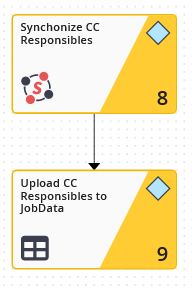
Process graphic
The SharePoint list
The SharePoint list consists of 3 columns. The title column, which is normally on the far left, has been moved to the center.
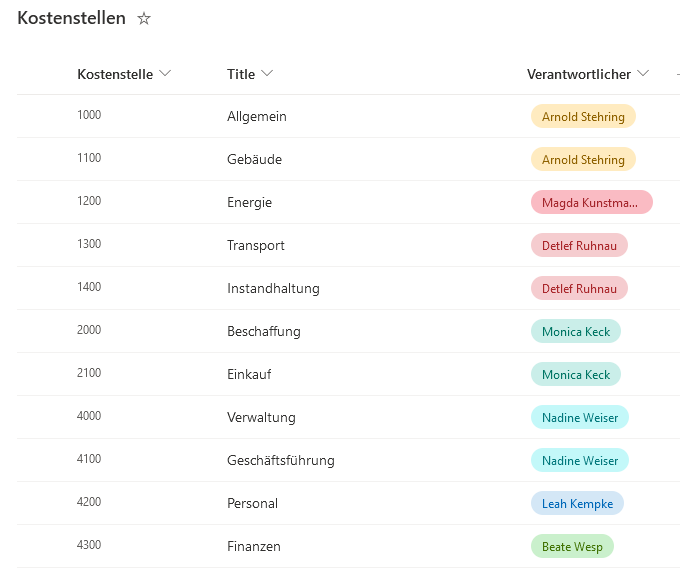
SharePoint Liste
JobData table
The JobData table also has three columns and is empty at the beginning in the example

JobData table
The SharePoint system activity
In the system activity the function Retrieve List Items is used.
In the General Settings, the SharePoint page and the desired SharePoint list, here Cost Centers, are selected.
It is important here that no fixed sub-table is selected, because this is empty at the beginning and the system activity would then not be executed.
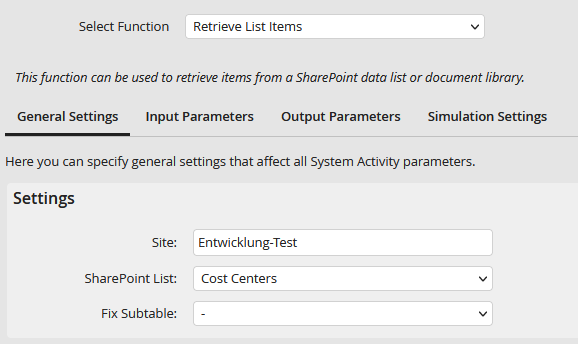
General settings
No search filter is selected in the input parameters, since all entries of the SharePoint list are to be transferred to the sub-table.
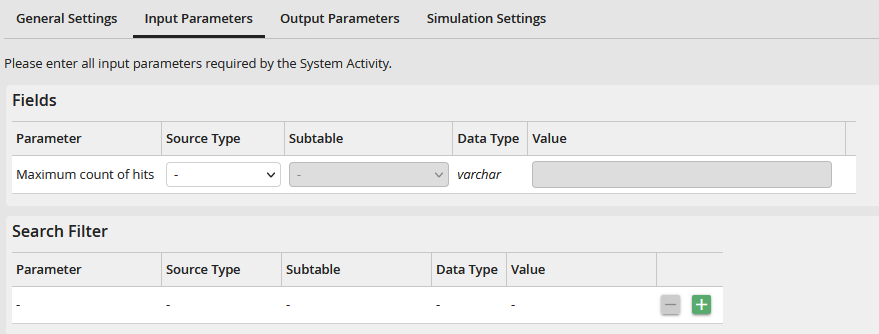
Input parameter
In the output parameters, the SharePoint list columns are selected in the left column Parameters. As resource the subtable and the respective columns are selected.
In addition, a Return Code or an Error Message could be specified in the individual fields so that information is returned in the event of an error..
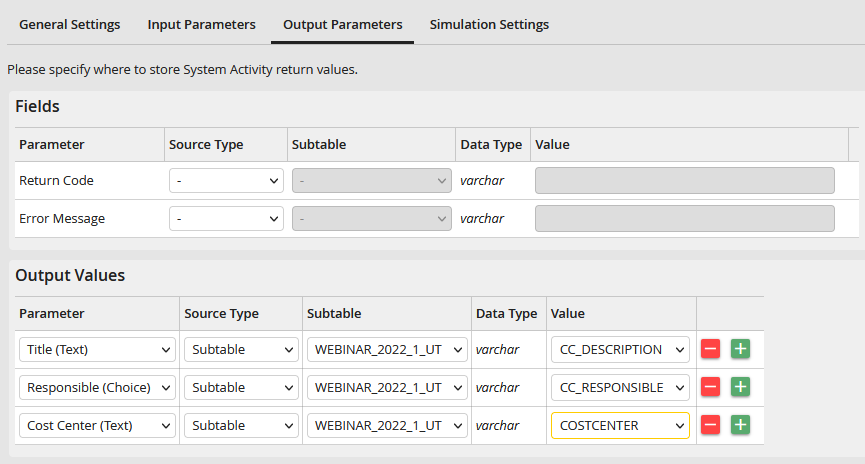
Output parameter
The JobData system activity
In the subsequent JobData system activity, the Add record function is selected. In the General tab, the corresponding JobData table and the previously used sub-table are selected.
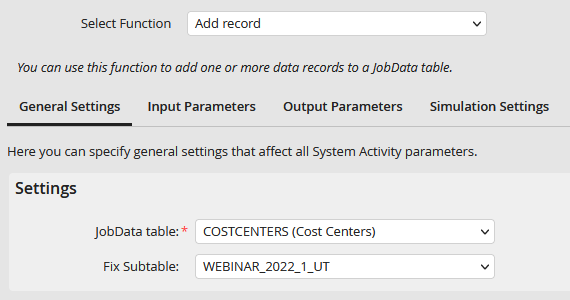
JobData General settings
In the Input Parameters tab, the columns of the JobData table are selected under Parameters. The subtable with the corresponding columns is selected as the resource..
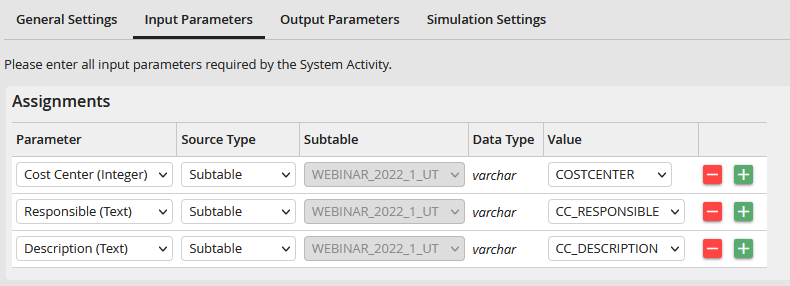
Input parameter
Result
After the execution of the individual steps, the JobData table Cost Center is filled with values from the SharePoint list.
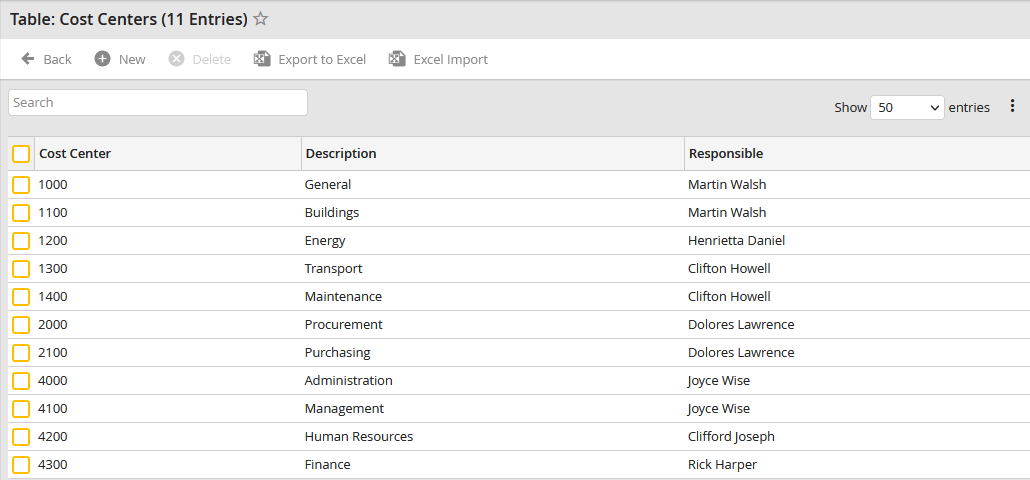
Filled JobData table
