You can modify a subtable view by clicking on the  symbol next to the particular view in the overview. This will call up the form window for selecting subtable view columns.

Subtable View Columns
The view shows the name of the column, a label, and a type. Use the  button to add a new column. Click the
  button to remove a column. Change the order of the columns using the move up
  and move down
  arrows. Click on the symbol to edit the properties of the column.
You can build your filter using various elements like text fields, checkboxes, and lists. The following will show you how to add an element of type TEXTBOX to your subtable view. Other elements are incorporated in exactly the same manner. There is a complete list of subtable view element properties in the Reference in chapter Subtable elements.
Please note: If you want to refer to a column from a subtable view, the following notation is generally required: [<subtableViewName>_<columnName>]
SELECT DISTINCT mimetype FROM JRFILES WHERE mimetype LIKE '%[subtableViewFileDetails_mimetype]%'
Click on the button to add a column. A pop up window to select the element type appears.
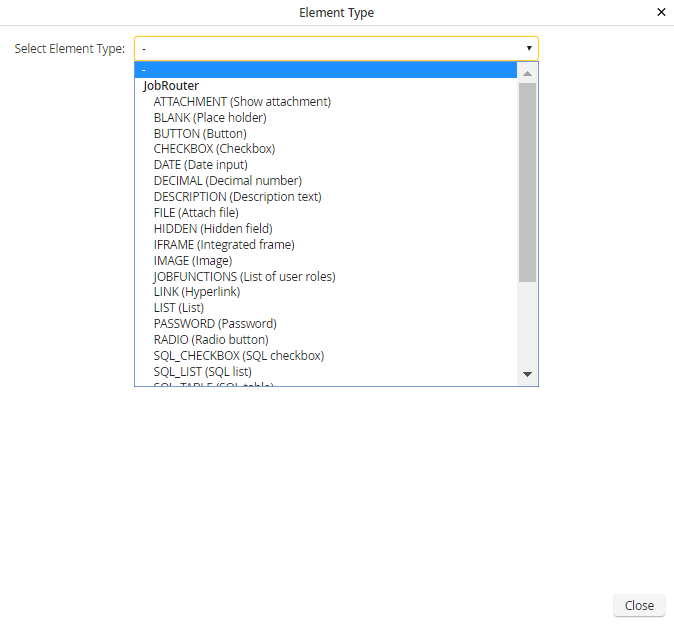
Subtable View Element Types
You have a choice of the following default element types.
Element type |
Description |
|---|---|
ATTACHMENT |
Display attachment |
BUTTON |
Button |
CHECKBOX |
Checkbox |
DATE |
Date field |
DECIMAL |
Decimal number (123.00) |
FILE |
Attaching a file |
HIDDEN |
Hidden field |
IMAGE |
Image |
JOBFUNCTIONS |
List of JobFunctions |
LIST |
List |
POS_AMOUNT |
Line amount |
RADIO |
Radio button |
SQL_CHECKBOX |
SQL-Checkbox |
SQL_LIST |
SQL list |
SQL_TEXTBOX |
SQL text input field |
TEXT |
Text |
TEXTAREA |
Multi-line text input field |
TEXTBOX |
Text input field |
USERS |
User list |
Select an element type and click Continue to access the element properties form window for the selected element type. It will appear similar to the following, which is for a TEXTBOX element.
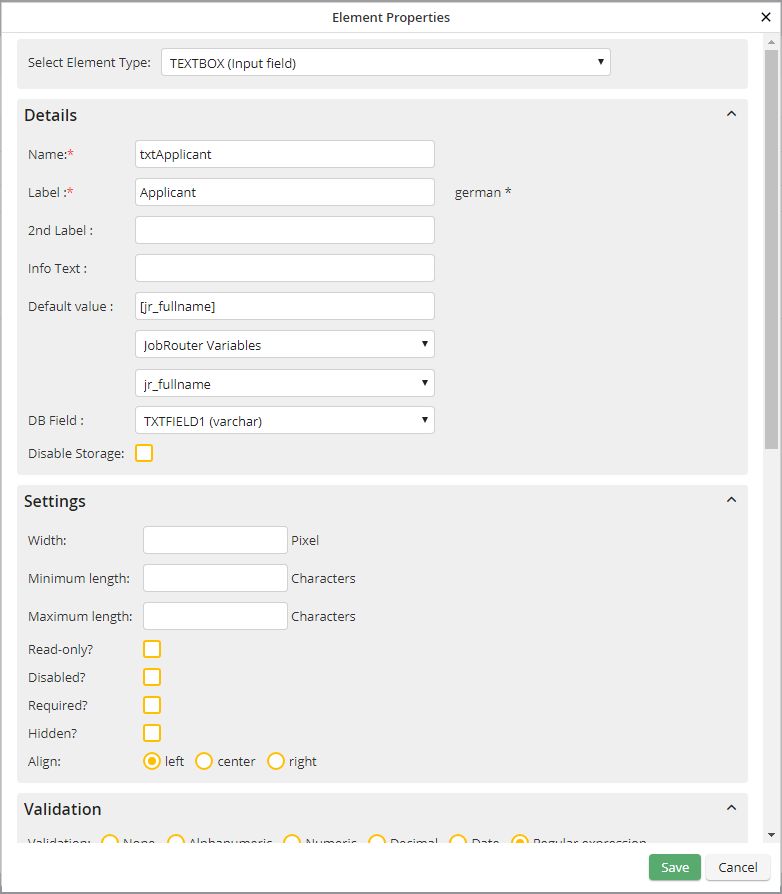
Element Properties Textbox
You can specify the following properties.
Properties |
Description |
|---|---|
Name |
•Required •Assign a name for the field. |
Label |
•Required •Provide an appropriately descriptive label to the field. •The label will appear to the left of the text input field in the form. •If your process is multi-lingual, you can provide labels in multiple languages. Click in the label field to open additional input fields. |
2nd Label |
•The optional second label would appear after the text input field. •This field can likewise be entered in multiple languages. (see above). |
Info Text |
•This text is displayed in a help balloon when the mouse pointer passes over the element. •You can enter the text in multiple languages. |
Default value |
•You can previously fill in the input field with any text you wish. •Moreover, this text can come from form fields, DB fields, JobRouter variables, as well as from configurations. •If the text comes from a form field, you' will see an additional drop-down list with the available form fields (see the illustration Subtable View Element Properties). |
DB field |
•You can use subtable fields of type VARCHAR, INT, BIGINT, and TEXT. |
Width |
•Specify the width of the input field, in pixels. |
Minimum length |
•Specify the minimum length of the input, in characters. |
Maximum length |
•Specify a maximum length of the input, in characters. |
Write-protected |
•Specify whether the field should be write-protected. |
Deactivated |
•Use this function to disable the field. |
Required |
•Decide whether the user must fill in this field. |
Hidden |
•The field will not be displayed. |
Alignment |
•Specify whether the text of the input field should be left, center, or right justified. |
Input •alphanumeric •numeric •decimal
•Date |
You can check the entry for being the correct type. •Any characters (A-z, 0-9) •Only digits •Decimal numbers: If you click decimal, the Precision field appears. Select the number of decimal places the input should contain (see illustration Subtable View Element Properties). •Only a date: Also select the date format (see illustration Subtable View Element Properties). |
OnClick |
•Add scripts to be executed when the user clicks on the element. |
OnChange |
•Add scripts to be executed when the element's value changes. |
OnFocus |
•Add scripts to be executed when the cursor stops within the input field. |
OnBlur |
•Add scripts to be executed when the cursor leaves the element. |
OnKeyDown |
•Add scripts to be executed when characters are input. |
Caption color |
•Specify the color of the caption for the element. |
Background color |
•Specify the text background color of the element. |
Font color |
•Change the font color for the input field. |
For the properties Label, 2nd label and the info text, process messages can be defined, which allows maintaining the translations in a central place. For more information See chapter Process messages as translation for form and subtable elements.
When you have finished your entries, click Save to store them and be taken back to Subtable view column selection. Or click Cancel to exit the form window without saving any entries and be taken back to Subtable view column selection. Clicking Back takes you back to the element type drop-down list.
