Click Workflow | Process table in the Designer navigation menu. You see all previously defined process table fields sorted in alphabetical order.
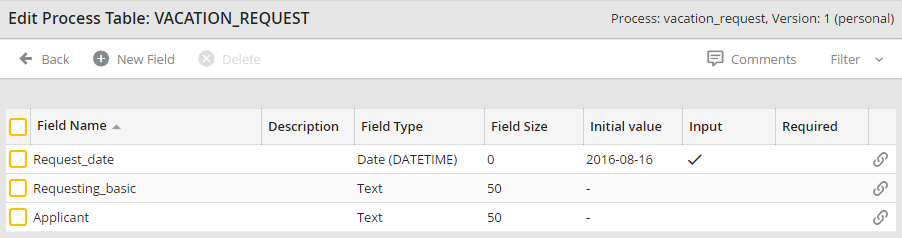
Process table fields
To create a new field, click New field in the action bar. You will see the form window below. When you have made all the entries, click Save to store them and return to the table fields overview.
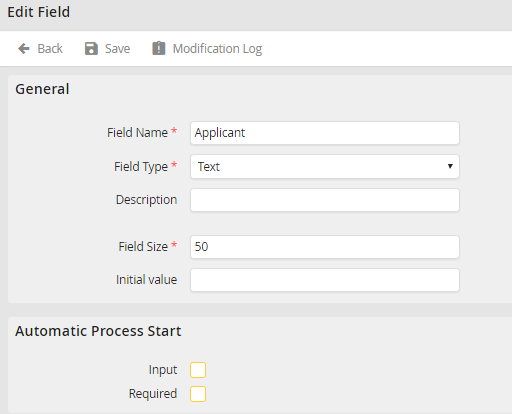
Field properties
You can assign the following field properties.
Please note: Once you have created a field, the field name and field type can no longer be modified.
Field properties |
Description |
|---|---|
Field name |
Assign a name to the table field. The name is required and cannot be subsequently changed after being saved. |
Field type: •Text •Attachment •Integer •Big Integer •Decimal •Long Text •Date (DATETIME) •Date (TIMESTAMP) •Encrypted Text |
Select one of these field types: •Text •Attachment •Integer •Big Integer •Decimal •Long Text •Date (DATETIME) •Date (TIMESTAMP) •Encrypted Text |
Description |
Enter a description for your table field. The description is only used for documentation. |
Field size |
Field size can be defined for text fields. |
Decimal places |
For decimal fields, you can specify the number of decimal places. |
Initial value |
You can set an initial value, which, for example, could be a specific date in the case of a date field. |
Input |
If this checkbox is enabled, you can fill the field externally when the process is started automatically. If this checkbox is disabled, the fields cannot be filled externally. |
Required field |
A required field must be externally filled during automatic process start. Otherwise, the process cannot be completed. |
