As of JobRouter version 5.2 it is possible to simultaneously sign and send multiple documents. Therefore, only an Envelope is required.
The documents that need to be signed can be uploaded in the form of Word DOCX into a subtable.
In Send a document based on a Word template an existing subtable attachment field can be selected in Input parameters in order to subsequently attach multiple documents to the instance.
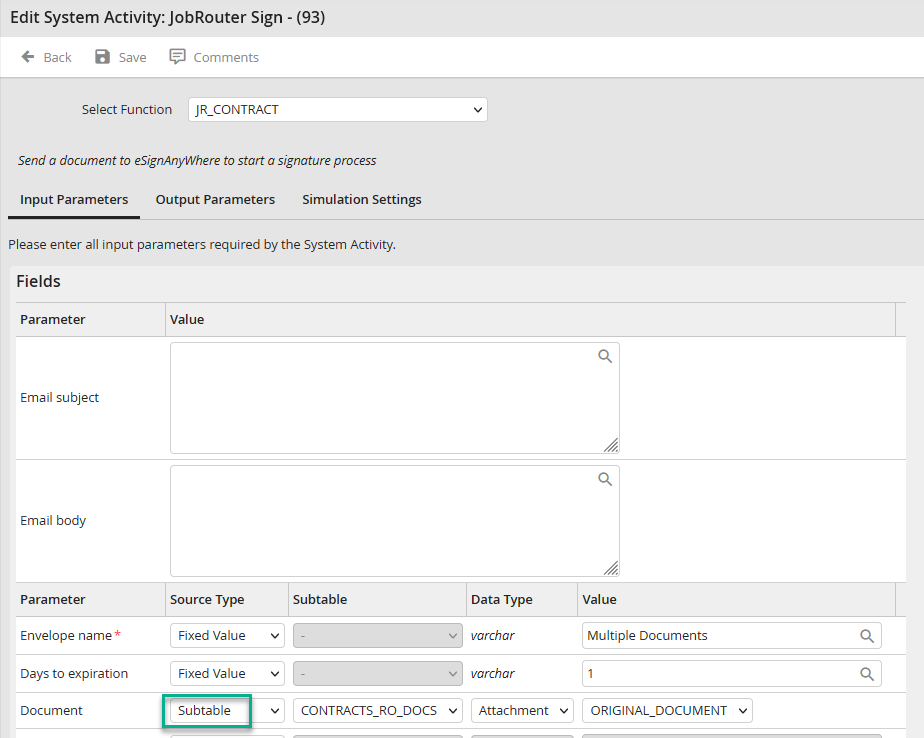
Input parameter document
With the Select Function drop-down list, the Process Designer uploads a Word document that must contain all signature fields.
Please note: This Word document is a dummy document that only contains the signature placeholders. The later signatures are NOT set on this document, only the number of signatures is identified.
Example Dummy-Document:
JobSign_signer1
JobSign_signer2
The actual Word documents to be signed later are uploaded via a sub-table attachment field in the process history and must include one of these signature placeholders.
Please note: You can also use mergefields for the signature placeholders in the Word documents to be signed.
Example:
«Signatur2»
As the process continues, you can then use JobPDF to assign the signature placeholder, such as JobSign_signer2, to this mergefield. This is useful if it is not clear in advance how many signatures are to be made on a document. Of course, appropriate rules and steps must then be defined in the process design to cover the particular situation.
There must be at least one document with one of these signature fields. However, even documents without any signature placeholders can be used in this instance. These are handled like normal attachment documents.
A new output field named Document ID is now available. The aim of this field is to store a unique eSignAynwhere ID for one of the documents that is in the envelope. This enables in the function Download document the attachment of the signed document in the same line of the subtable as the insert document at the end of the process.
In the system activity Download document under Input parameters the document ID for a subtable can be selected. This enables the individual selection and download of the signed documents.
The following scenarios are possible:
1.If a process table field is selected as output parameter while the envelope contains multiple documents, all documents are combined to a ZIP file and attached to the process table field. The ZIP file is named after the entry in the field Signed document (file name) under the system activity function Download document (process table, subtable, or fixed value).. The documents in the ZIP file are named after the ZIP file and receive an additional number.
Example:
Field Signed document (file name), fixed value with SignedDocument.
The name of the ZIP file is then SignedDocument.zip. The contained PDF documents get the name SignedDocument_1.pdf, SignedDocument_2.pdf etc.
2.A process table field is used as output parameter. The field Document ID in the function Send document based on a Word template is occupied with a field from the subtable. The fields Document ID and Signed document (file name) in the Download document function are occupied by fields from the subtable.
The ZIP file gets a unique name (for example: 9f01ca0b-ea1b-48a4-9eb9-753b9bcd3c0c.zip) and the contained and signed PDF documents are named after the name in the subtable.
3.If a subtable field is chosen as output field and the field Document ID is used, all signed documents are named according to the field Signed document (file name) in the system activity field Download document (process table, subtable, or fixed value). The signed documents are stored in the same subtable line as the original document and named as stated in the subtable.
If the Document ID is not used, a separate line is inserted into the subtable for every signed document.
Example subtable:
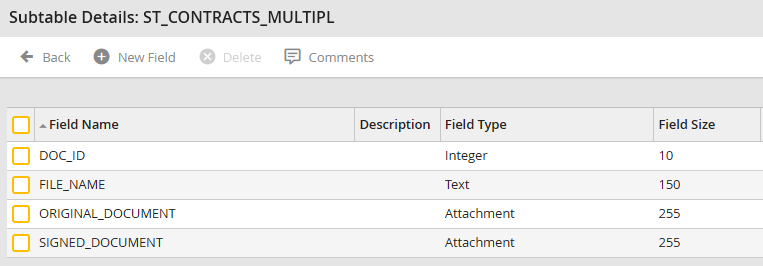
Example subtable
Output:
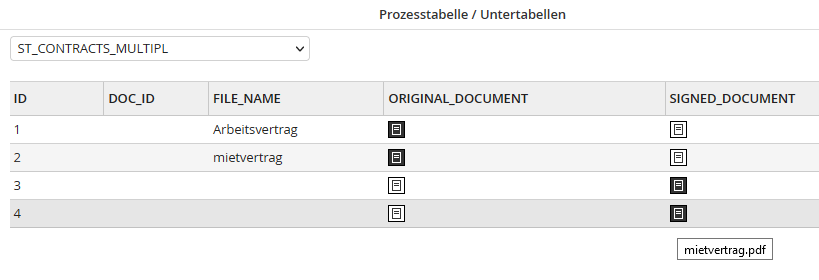
Output subtable
4.Subtable A was selected as input parameter for the function Send document based on a Word template. Subtable B was selected as output parameter for the download. In this case, a separate line is inserted into Subtable B for every signed document.
