JobRouter allows you to postpone a step for a specified period of time. Postponed steps reappear in your Process Inbox after expiration of this delay. Click on Postpone to postpone the step and a pop-up window will appear.
Use the two option buttons to decide whether the step is postponed for you personally (Private) or for the Job Function of the step (Job Function). The option buttons are only displayed if a Job Function is assigned to the current step. Otherwise, the step is postponed for the current user.
A note in the upper area of the pop-up window explains the effect of postponing a step and shows the date until which the step is postponed.
The screenshots show the popup for the reminder date once in a classic dialog and once in a modern dialog.
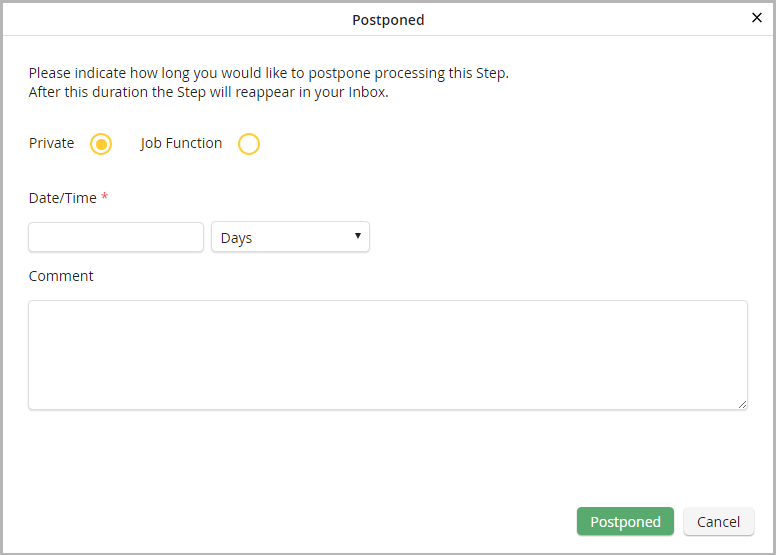
Defer a step
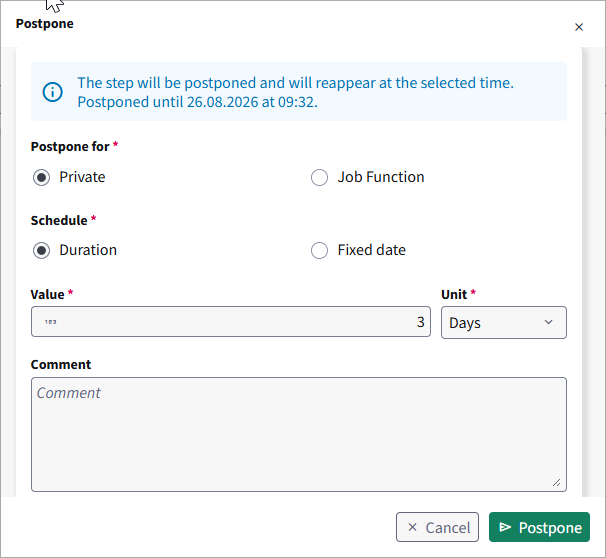
Specify the period
You can postpone the step either for a specified period of time (minutes, hours or days), counted from the current time, or until a fixed date. How you enter this depends on the form the step is linked to. You can recognise the variant by the fields in the pop-up window:
▪the pop-up window contains a selection list and the Date/Time field: to postpone the step for a period of time, select Minutes, Hours or Days from the selection list and enter the required number in the Date/Time field. To postpone the step until a fixed date, select Date and enter a valid date in the Date/Time field.
▪the pop-up window contains the Schedule section: to postpone the step for a period of time, select Duration (default selection), enter a positive number in the Value field and select Minutes, Hours or Days in the Unit field. To postpone the step until a fixed date, select Fixed date and use the date picker to select a date in the future. The note in the upper area of the pop-up window is updated as soon as you change your selection.
Mandatory fields are marked with an asterisk.
Postpone the step
In the Comment field, you can enter a text. Click Postpone. The pop-up window closes automatically and you see the form of the step you processed. The step is postponed and disappears from your Process Inbox until the selected date is reached.
If you do not want to postpone the step, click Cancel.