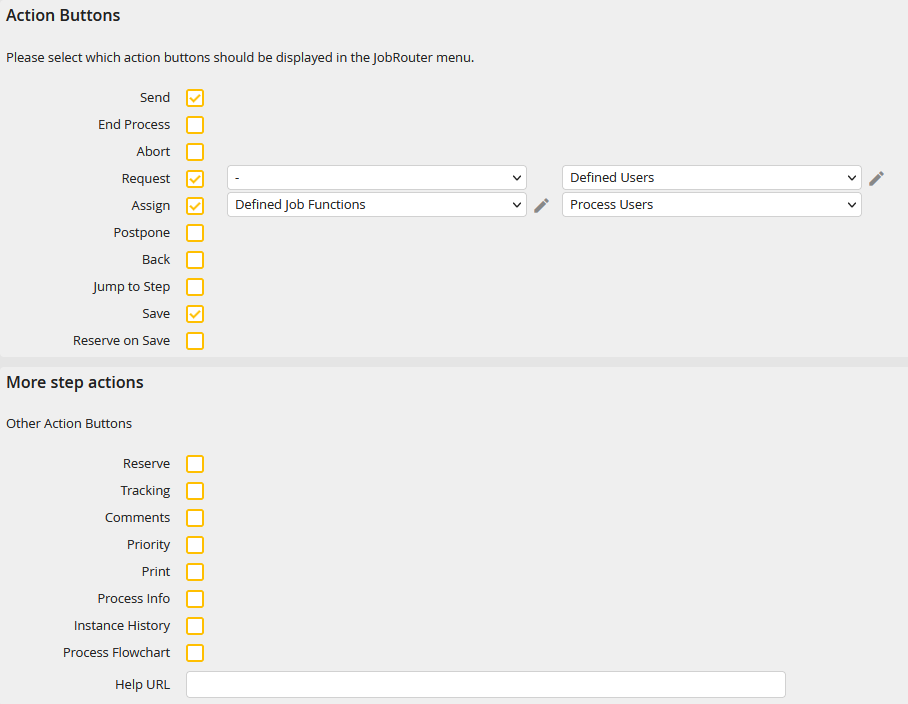
In the Actions tab you can specify which action buttons should be displayed in the respective step. Use the action buttons to determine what the user can do when editing the step. When the user opens a step, the action buttons appear in the top action bar.
Properties |
Description |
|---|---|
Action buttons By means of action buttons you define, what a user can do when editing a step. When the user activates a step an action button appears on the left side of the action bar. Apart from the action Save all other actions are displayed in the menu under the Send button.
Please note: For the JobRouter App only the action buttons for Send and Save are currently supported.
|
|
Send |
•The rules of the step are executed. •The process continues with the subsequent step. |
End Process |
•The rules of the step are executed. •The process continues with the subsequent step. |
Abort |
•This option aborts the instance. |
Request |
•Check this box to adapt the menu dynamically. Two selection lists appear. •The user can send a request either to any job function or only to a job function assigned to the process. In addition, job functions can be explicitly set (see paragraph Defined Job Functions and Defined Users). The same can be configured for users. |
Assign |
•Check this box to adapt the menu dynamically. Two selection lists appear. •The user can either assign a step to any job function or only to a job function that you have assigned to the process. In addition, job functions can be explicitly set (see paragraph Defined user roles and Defined users) The same can be configured for users. |
Postpone |
•The user can defer the step for a certain length of time. |
Back |
•The back button sends the instance back to the previous user who worked on it.
Please note: When executing the Back action, the data status from the previous step in the process is used. Saved changes from the step in which the Back action was executed are not displayed and cannot be used. |
Jump to Step |
•The user can forward the instance to another step inside the process. |
Save |
•User input from the form is saved. |
Reserve when saving |
•If this option is enabled, a step will be automatically reserved for a user when he saves it. |
Additional step actions These will be displayed in a drop-down menu on the right side of the form.
|
|
Reserve |
•The user may reserve the current step. |
Tracking |
•This button in the form would allow the user to access the JobRouter Monitoring section to consult the whole history of an instance.
Please note: •The tracking widget is only available if tracking was activated in the user profile. |
Comments |
•The user may add comments. |
Priority |
•The user can alter the priority of the current step. |
•A print button will appear in the step menu that optimizes the layout for printing. •In wide forms content may be cut off if they do not fit on one page width in the printed document. •Any integrations contained in the form are not printed. |
|
Process Info |
•When you check this box, the person responsible for the process can modify the documentation. |
Instance History |
•Check this box to allow the user to see the instance history of the step. •A pop-up window shows the complete instance history of the selected instance. |
Process Flowchart |
•Specify if the user can see the process flowchart. |
Help URL |
•Enter a web address that contains the process documentation (for example, a PDF document in the data directory). |
Defined User Roles and Defined Users
Explicitly defined job functions or users can be set for the actions Assign and Request in order to determine to which users the process can be assigned or the request can be made. A click on the corresponding pencil symbol opens a pop-up.
The job functions or users can be set under the Options tab.
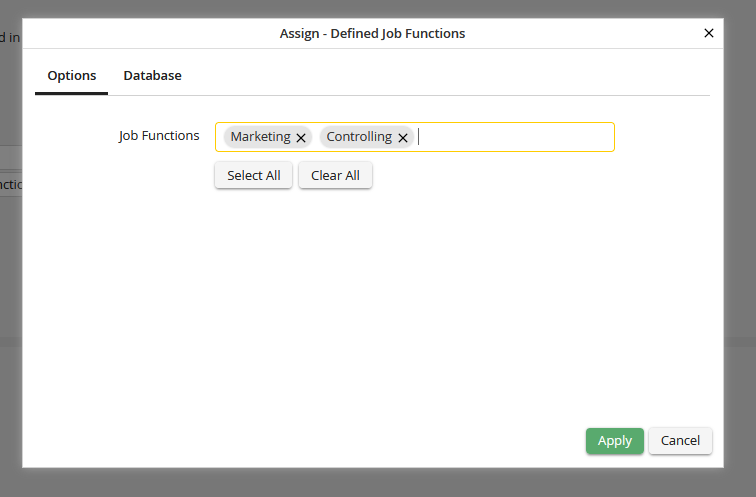
Please note: If there are a large number of users or job functions, it may take several seconds for them to be displayed when the dialog is loaded or when the Select All button is pressed.
Under the Database tab, an SQL query can be defined whose result supplements the selection of defined roles.
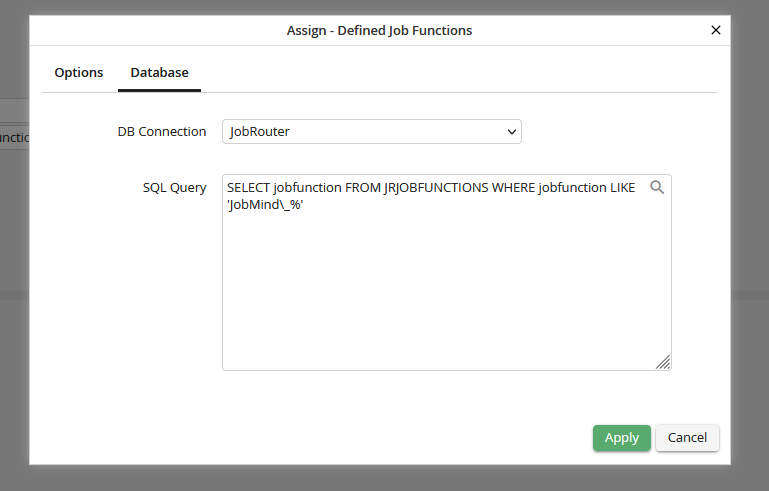
The query must return a list with job function names (corresponding to JRJOBFUNCTIONS.jobfunction) or with user names (corresponding to JRUSERS.username) depending on the recipient type (only one column). Sorting (with ORDER BY) is not necessary.
