To create or modify an inbox, go to Inboxes in the Designer navigation menu. An overview of previously created inboxes will be displayed.
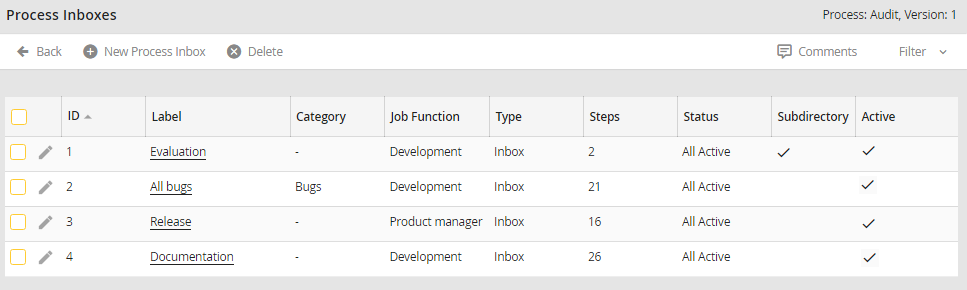
Inbox - Overview
The Label column is the name of the inbox. The column Category indicates which process category the inbox is assigned to. The Job Function column displays the Job Function this inbox is assigned to. The Type column indicates if the inbox is a normal inbox or a queue inbox. The column Steps shows if only specific steps of the process - and if yes, which steps - are displayed in this inbox. The column Status indicates the allowed status of displayed steps in this inbox. The checkbox in the column Subdirectory indicates if the inbox is displayed on the highest level in the JobRouter navigation menu, or as subdirectory. The checkbox in the Active column indicates if the inbox is active and visible to all users of the assigned Job Functions.
To create a new inbox, click New inbox in the action bar to access the Edit process inbox form window. To modify an existing inbox, just click the name of the inbox, and the form window shown below will be displayed.
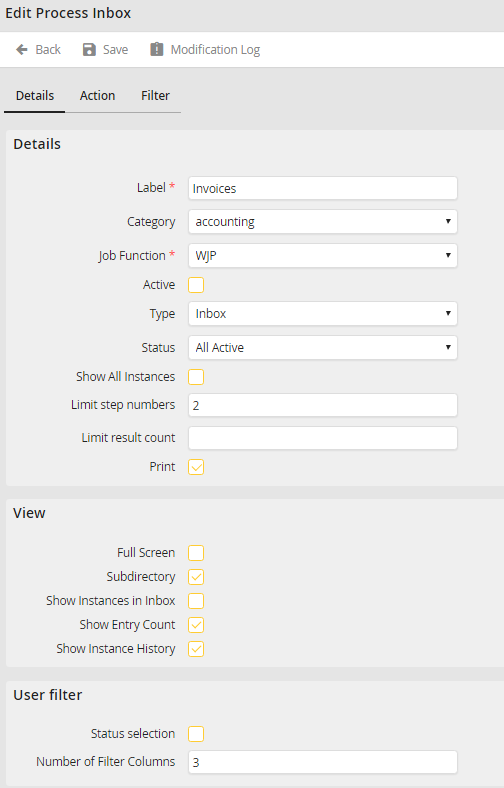
Modifying a Process Inbox - Details
Once you have filled in the fields in the three areas, Details, Action, and Filter, click Save to save your settings and be taken back to the inbox overview.
Delete an inbox
To delete an inbox, check the box next to the name of that inbox. Then click Delete in the action bar. The inbox will be deleted.
