It is possible to display the subsequent user step to the user directly, if the respective user has the role assigned to the subsequent step. So it is e.g. possible to display several users steps one by one. Therefore, create a forwarding rule and activate the option Open/send subsequent steps directly in Advanced settings.
Important note
•The forwarding rule with activated Open/send subsequent steps directly option has to be available for every step, which shall be cascading processed.
•In the simulation this option will not be considered.
•With activated constant CONST_SEND_IN_BACKGROUND the step is send via the service. Therefore, this option can not be used. The use of the constant CONST_FASTTRACK_INCIDENTS is not supported, neither.
•If the user has activated batch processing, this setting will be ignored and the subsequent step will be displayed.
Application scenarios
Hereinafter some application scenarios are described. If not stated differently, the option Open/send subsequent steps directly is activated in the forwarding rules and the user obtains the role, which is necessary for the subsequent step, which shall be displayed then.
Cascading user steps
In this example forms building upon each other are created. Thus it is possible to split a large form into several small forms. After sending the step the subsequent step is displayed to the user directly.

Cascading user steps
Step 1 contains an activated forwarding rule and points to step 2. Now, if the user is sending this step, step 2 is displayed after performing possible further rules. This step contains a forwarding rule, too. If this step is send, step 3 is displayed to the user.
Several forwarding rules in one step
If several steps are activated from one user step via forwarding rules, all subsequent steps will be created:
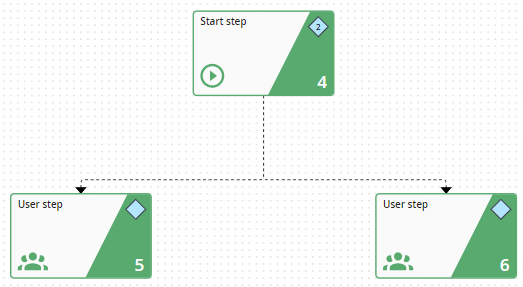
Several forwarding rules in one step
The user sends step 4, so step 5 and 6 will be created. We assume that the user has the adequate role for both subsequent steps. Then the last created step will be displayed to him directly (in this example step 6).
If the user has only the respective role for step 5 and not for step 6, step 5 is displayed to him.
Direct performance of system activities
In this example, after sending the start step (step 7), an E-mail is send (step 8) and step 9 is displayed to the user directly:

Direct performance of a PHP-sided system activity
Thereby, system activities can be connected to user forms interactively.
Important note: This performance works only for PHP-sided system activities. System activities performed by the service can not be performed immediately via a forwarding rule. In this case, the form is closed and the subsequent step (in this example step 9) is displayed after the system activities in the inbox of the user has been accomplished.
Please note: If the system activity is assigned to another process pool, the activation of the option Open/send subsequent steps directly has no impact.
