Click Manage processes in the JobRouter navigation menu. You will see an overview of all previously defined processes. Click New in the action bar to create a new process.

Creating a new process
You will see the New process editing mask. Enter all global data for the process in the form. Then click Save to create the new process. You return to the overview of the processes. If JobRouter could not create the process, you receive a corresponding error message.
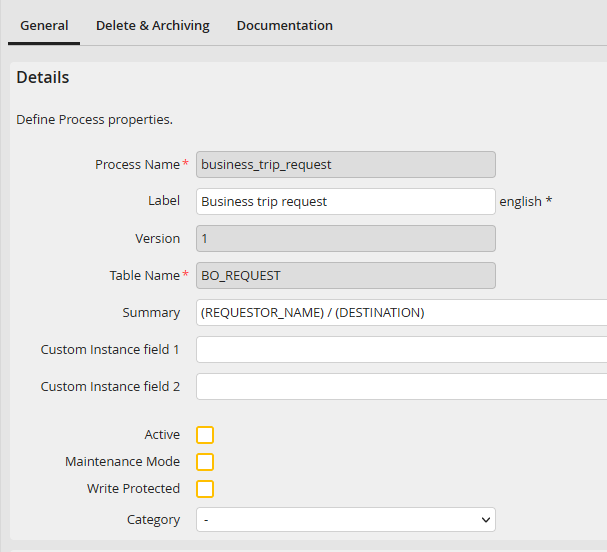
Create process
You can set up the following process properties.
Process properties |
Description |
|---|---|
Process name |
Enter the name of the process under which it is stored in JobRouter. |
Label |
Describe the process corresponding to its function (e.g. Invoice receipt). The label is displayed to the user. |
Version |
The version is automatically assigned. You can not manually enter it. Versioning is fully explained in the JobRouter Administration Manual. |
Table name |
Enter a name for the process table assigned to the process. The table is created automatically. Make sure the table does not already exist. Please note: The table name cannot begin with a digit. |
Subject |
Subject that is displayed in the step overview or in the input box. The subject can be filled with values from the process table. |
Custom Instance fields (1,2) |
The user-defined instance fields can be defined by the administrator and are available across processes. The fields can be filled with values from the process table. |
Active |
Activate the process here. If there is an active process in another version, it will be deactivated.
If the number of active processes in the license is limited and there are already as many active processes in the system, no more processes can be activated. In this case, the checkbox is disabled and a message indicates the reason when the menu is opened. |
Maintenance Mode |
If you activate this option, only process designers can open and start the steps. All other users will get a hint about the maintenance mode. |
Write Protected |
The process becomes read-only and can no longer be opened and edited with Designer. |
Category |
You can assign the process to a category, which affects the order of the processes listed in the overview. For further information see the JobRouter Administration Manual. |
