You can edit the general properties of an available process by clicking on the process name. You can see the form in the figure. Click Save if you have made all your settings. You will automatically return to the process overview.
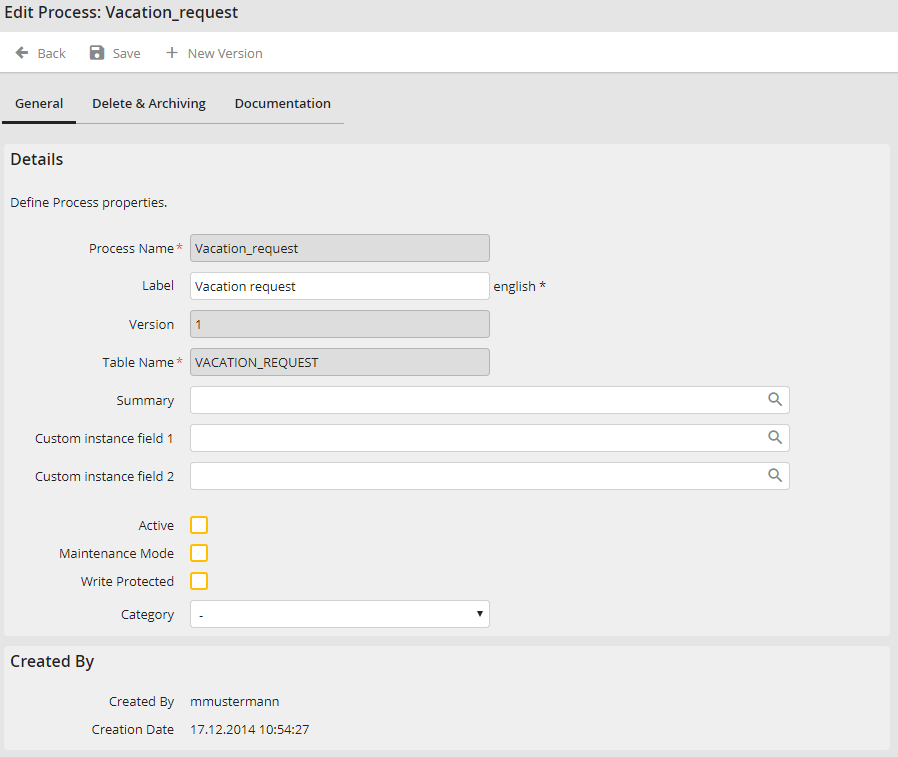
Edit process properties
You can alter the following process properties.
Process properties |
Description |
|---|---|
Process name |
The name was given when the process was set up. Please note: The name can no longer be changed. |
Label |
Enter a description (e.g. invoice date), that is displayed to the user later. |
Version |
The version is automatically assigned. You can not manually enter it. Versioning is fully explained in the JobRouter User Manual. |
Table Name |
You specified the name of the process table when you set up the process. Please note: The process table name can no longer be changed. |
Subject |
The subject text gives the user a short overview of the content of the instance. You can enter any text and can add values of the process table (See chapter Create process table). Enter the corresponding database fields enclosed in parentheses in the subject line. Pay attention to uppercase and lowercase letters. You can get to the already existing process and system fields via the following symbol |
User-defined incident fields 1 and 2: |
The user-defined instance fields give the user information about the content of the instance. You can enter any text and add values of the process table (See chapter Create process table). Enter the corresponding database fields enclosed in parentheses in the input field. Pay attention to uppercase and lowercase letters. You can get to the already existing process and system fields via the following symbol |
Active |
Check this box to enable your process, then in the drop-down list select one of the three ways to number the process incidents: Next incident number: The next available consecutive number will be assigned. Start with 1: The instance receives the number 1 independent of already assigned numbers. Set instance number manually: Choose any instance number you wish. If you want to continue making changes, clear this box. Your process is inactive |
Maintenance Mode |
As long as the maintenance mode is active, only users with process management rights and persons responsible for the process with process editing rights can open and send steps of this process. All other users receive a message stating that this process is under maintenance. The service modules JobImport and JobTimer are also deactivated for processes in maintenance mode. |
Read-only |
When checked, the process cannot be deleted, and the Designer cannot be called up. This function is a safety mechanism that prevents the process from being accidentally modified or deleted. |
Multilingual support |
Enable the multilingual support if you want to publish your process in multiple languages. |
Category |
If categories have been assigned, you can assign the process to a category, which affects the order of the processes listed in the overview. For further information read the JobRouter Admin manual |
Documentation |
Click on the Documentation tab to describe your process in detail. |
 .
. 