Create a Parallelization start or Parallelization end step either in the Modify step form window in the Steps section or using Flowchart Editor. If you use the former method, read the preceding chapter Create and modify parallelization start and parallelization end.
However, it is better, quicker, and simpler to create the step in Flowchart Editor. Then only from Flowchart Editor can you modify the association to Parallelization end. Right click in the Flowchart Editor workspace and select Parallelization start from the cursor context menu. The Parallelization start step is denoted with the symbol  Use the Connect button in the action bar to link the step to the other steps in the parallelization. Define the individual simultaneous step sequences and then join the flows using Parallelization end. When creating or modifying Parallelization start, your only options are to work on a rule or delete the step.
You have more options with Parallelization end. Create a Parallelization end step in Flowchart Editor using the right mouse button. You will see the symbol  . Right click this symbol and select Parallelization end to open the form window for this step.
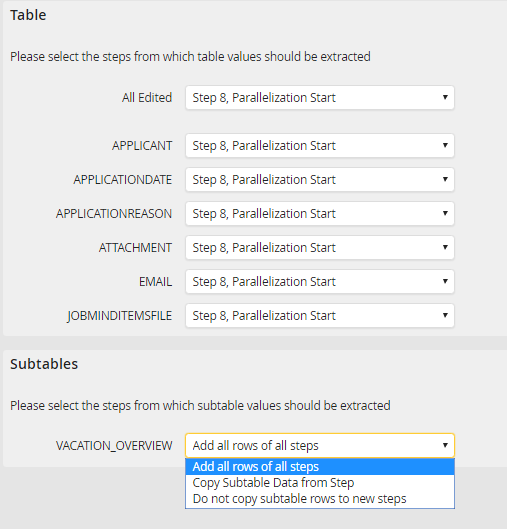
Creating or Modifying Parallelization End
You see the fields of your process table in the section table. You must make a selection for each field. These selections determine which data will be copied from which step. The lists contain those steps for which you have defined a Parallelization end as the next step in the Step properties. The other steps available are those for which you have defined a Routing rule in the Parallelization end association.
Subtables allows the users to gather various data, for example, several invoice items (See chapter Subtables & subtable views (JobTable module)). In the Subtable section you decide how the data from the various subtables should be passed. You can choose from these variations.
Data passing |
Description |
|---|---|
Add all lines of all steps. |
All subtable fields entered by the user in parallel steps will be directed together into one subtable. |
Copy subtable data from a step |
The data from a step's subtable will be passed along. Specify the respective step in the second drop-down list. |
Do not pass subtable rows to subsequent steps. |
A step's subtable data will not be passed on. |
