Documentation gives you an overview of your complete process. You can store and print out your process documentation in PDF format. When you create the documentation, you can specify which process information is to be recorded.
Creating documentation
The Documentation menu item is in the upper right corner of the JobRouter Designer menu. You can also access the documentation function via Overview in the Designer navigation menu. Click Documentation to see the following screen.
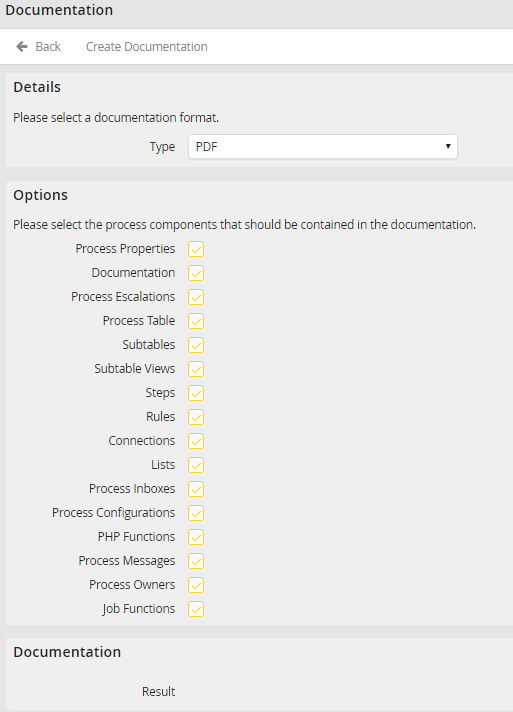
Creating documentation
Choose the documentation format you prefer, only PDF is supported at this time. In the Options section, specify which process details are to be included by checking the box next to, steps, forms, rules, and the process table, and so forth. The selected process components and their properties will be listed in tabular format. Click Create documentation to create the documentation in the chosen format, including the selected components. When the documentation has been created, a link entitled Click here to open the documentation will appear next to Result in the Documentation section. If you selected PDF format, a new browser window will open.
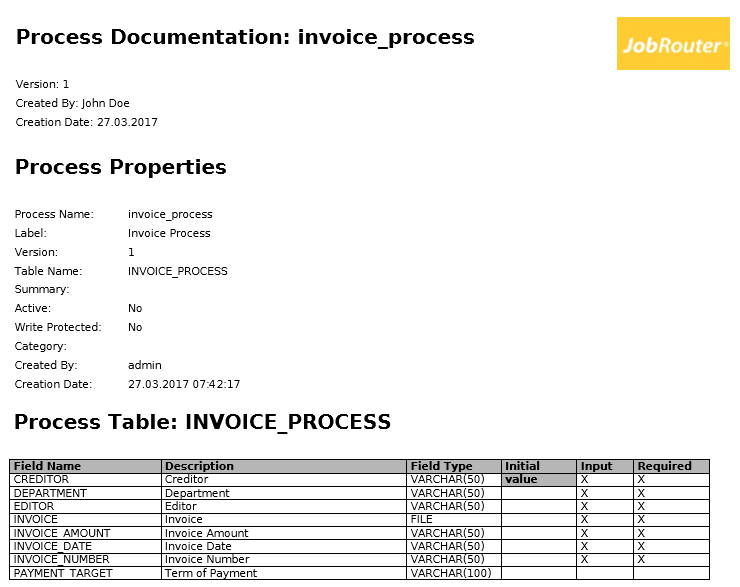
Excerpt of Documentation in PDF Format
Clicking Back takes you back to JobRouter Designer's overview display.
