Each form can contain several pages. You can see the individual pages tabbed at the top of your form. Add a new page to your form by clicking Add page in your form.
On the desktop client the pages are displayed as tabs at the top of the form. In the JobRouter app you can swipe through the pages or select a certain page from a menu on the top. In the Mobile Client all elements are displayed on a single page, regardless of whether there are more pages in the form.
When clicking Add page, a pop-up window will be opened. Here the page properties can be set. When finished, click Save to save the properties and to get back to the form editor. By clicking Cancel the pop-up window will be closed without saving your entries.
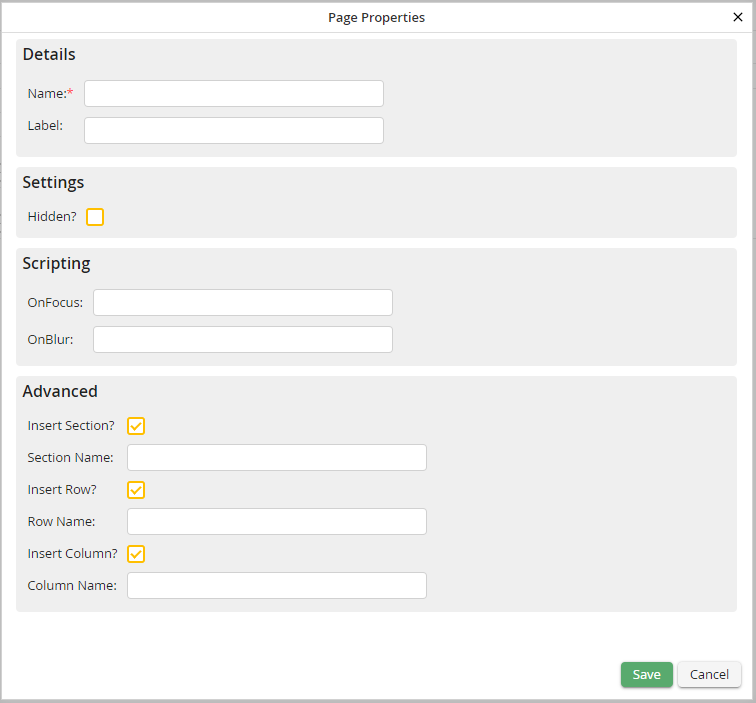
Set up Page properties
You can set the following properties:
Page properties |
Description |
|---|---|
Name |
Allocate an internal name for the page. This is a required field. |
Label |
Specify a label for the tab. It will be displayed in the form mask. |
Hidden? |
Choose whether or not the page should be visible in the form. |
OnFocus |
Enter scripts that should be executed when the switch to this page will be performed. |
OnBlur |
Here scripts can be stored that are to be executed when leaving the page. |
Properties that are only available when a page is added |
|
Insert section? |
This property is set by default. If you do not want to insert a section, remove the tick from the checkbox. |
Section name |
Insert a section name. |
Insert row? |
This property is set by default. If you do not want to insert a row, remove the tick from the checkbox. |
Row name |
Insert a row name. |
Insert column? |
This property is set by default. If you do not want to insert a column, remove the tick from the checkbox. |
Column name |
Insert a column name. |
