This element returns a result list in the form of a table. An SQL query is executed on a database connection, which is defined in JobRouter. The result of the query is displayed in the form of a table. The column headers are built from the column names or their aliases.
Please note: Before using this form element, please make sure you have read the chapter Notes on working with SQL fields in JobRouter carefully.
Property |
Description |
|---|---|
Name |
Element name |
Label |
Label displayed in the left column |
Info Text |
Info text, that will be displayed |
DB Connection |
JobRouter database connection selection |
SQL |
SQL query performed on the database |
Result Columns |
|
Label |
Column label |
Type |
Column type used for formatting and sorting. |
DB field |
Database column name from the SQL result |
Width |
Column width in pixels |
Hidden |
The column is not included in the dialogue. |
Settings |
|
Width |
Width in pixels |
Height |
Height in pixels |
Use old structure? |
If this property is activated the element will be displayed in an old variant. The functions Sortable?, Filter?, Paging?, Rows per page and Allow to change rows per page? are not available.
Please note: These properties are available to facilitate the migration and will be removed in a future version. |
Sortable? |
User can sort by all columns |
Filter? |
Table can be searched |
Paging? |
Table is divided over multiple pages |
Rows per page |
Only for Paging: Initial page length is indicated |
Allow to change rows per page? |
Only for Paging: User can adapt the number of entries per page |
Hidden? |
The element will be integrated in the form in hidden form |
Scripting |
|
OnClick |
Scripts, that will be executed after clicking on the element. In this scripts the variable [jr_row] can be used. It indicates the row, where the element was clicked and can e.g. be committed as parameter to a function. |
Color |
|
Background color |
Background color of the column headers |
Text color |
Text color of the column headers |
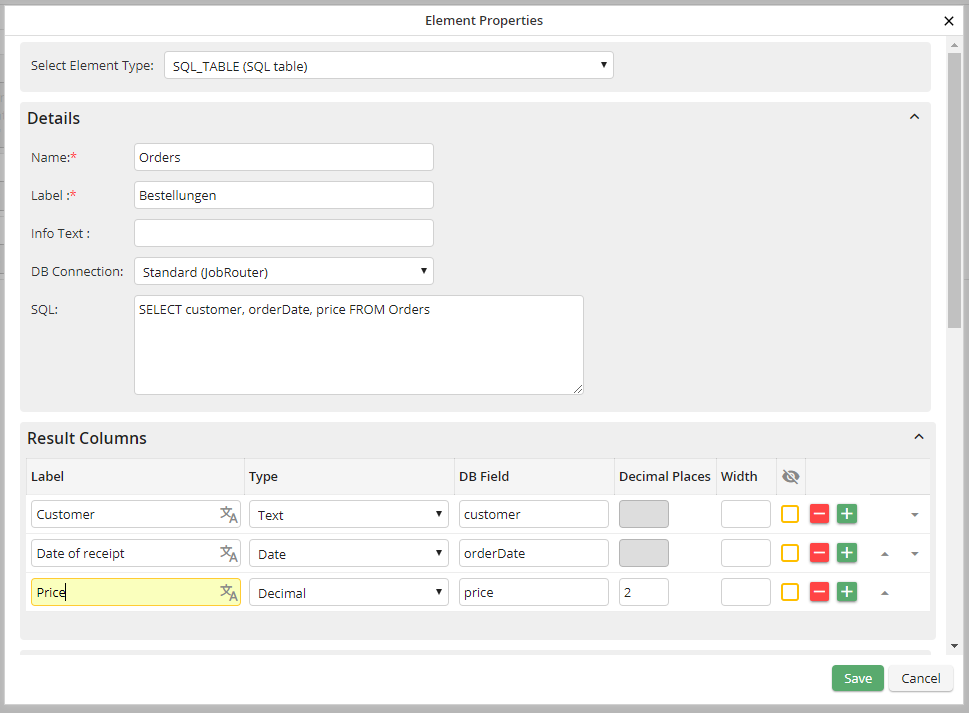
Configuration example:
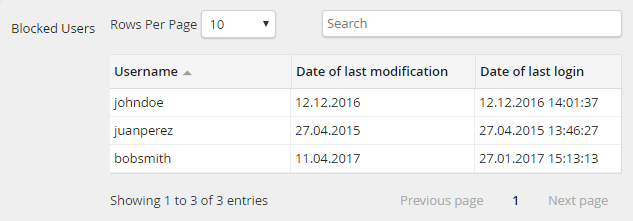
Display in the form:
Please note: If less columns are returned for the SQL query than column headers are stored, headers will be only displayed for as much columns as actually exist!
