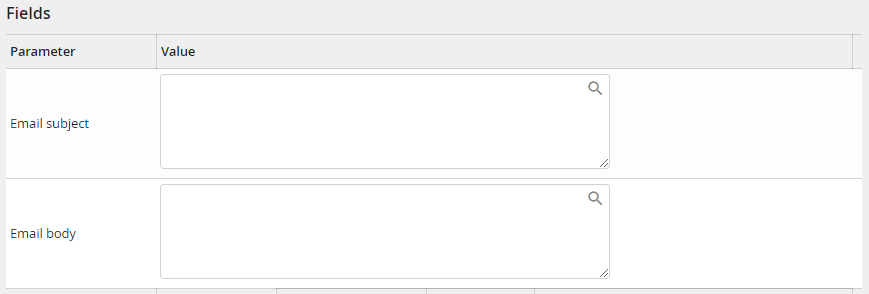
You can define the input parameters in this tab..
Feature |
Definition |
|---|---|
Email-Subject |
Subject of the e-mail sent by eSignAnyWhere to external recipients. If the subject is not specified, a standard subject is used |
Email-Text |
Text of the e-mail that eSignAnyWhere sends to external recipients. If the text is not specified, a standard text is used. |
Input Parameter
Feature |
Definition |
|---|---|
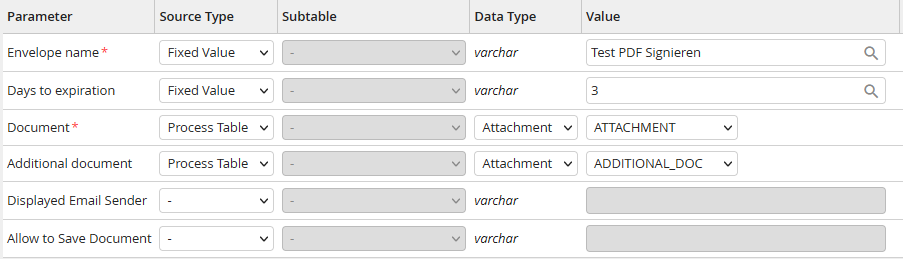
Subject of Envelopes |
Subject of the envelope, which is displayed in the eSignAnyWhere notification emai |
Validity perios (days) |
The period of validity of the signature request in days; after expiry, the document can no longer be signed until it is reactivated by an administrator or via the process. The maximum is 28 days, a document cannot be valid indefinitely. If the value is not transferred, it is automatically set to 28 days |
Document |
The document to be signed. This must be in *.pdf format. The signature placeholders are set in this document via JobRouter Integration and JobViewer. |
Additional Document |
Additional document attached to the main document without signature. The format can be *.pdf or *.docx. |
Attach additional document to te front |
When using an additional PDF document, you can decide whether this is to be stapled in front of or behind the template when it is merged with the template. |
Sender-Name |
The displayed name of the sender of the e-mail that is sent via eSignAnyWhere. |
Allow to Save Document |
If this option is enabled, the user can download the document directly from eSignAnyWhere during the signing process. He can choose between the original document and the finished, signed PDF document. |
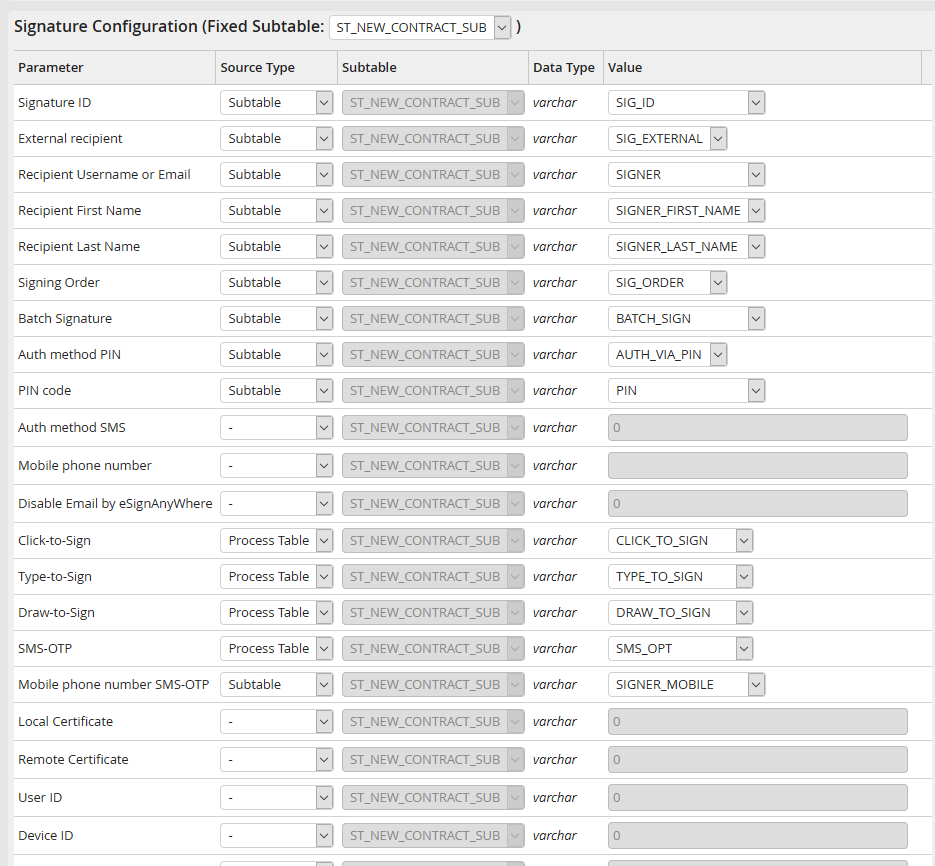
In the next area of the signature configuration, the signature ID and other parameters must be configured.
Parameter
Feature |
Definition |
|---|---|
Signature-ID |
Signatures ID as used when applying the placeholders. |
External receiver |
Flag indicating whether the signature is to be executed by a JobRouter user (0, unchecked) or an external recipient (1, checked). If the recipient is a JobRouter user, then the document to be signed can be displayed in the associated dialog integration. For this purpose, the link must be linked to a process table field in the output parameters. |
Recipient (username) |
For an internal recipient, the user name must be specified |
Recipient (E-Mail) |
For an external recipient, the e-mail address must be specified |
Recipient (first name) |
First name of the external recipient |
Recipient (last name) |
Last name of the external recipient |
Order in which the signature is to be made. Given as a number from 1 to x, number 1 signs first, number 2 second, and so on. It is also possible to make several signatures at the same time by specifying the same number for these fields. |
|
Batch Signature |
Parameters for the batch signature. With the batch signature, the recipient can decide whether he wants to sign all signatures within a document at once or each signature separately. Possible values are SIMPLE, UNSELECTED and PRESELECTED. |
Authentication via PIN |
Activate this option if you want to be prompted for a PIN code when opening the document. |
PIN Code |
Fixed PIN code that is requested when the document is opened. Attention: this PIN code must be known to the recipient. |
Authentication via SMS |
Activate this option if a (randomly created) PIN code should be requested when the document is opened. It is send via SMS to the stored mobile number. |
Mobile number |
Mobile number, to which the (randomly created) PIN code is send when the document is opened. Please note: the mobile number must be entered in the international format, e.g. +49123456789. |
Disable e-mail from eSignAnyWhere |
In case of an external recipient the notification mail with the invitation to sign is send from eSignAnyWhere. With this option this e-mail can be disabled and an own e-mail can be send through the JobRouter process. Therefore, the link in the output parameters has to be linked with a process table field. |
Click-to-Sign |
Signature activation method "Click-to-Sign" enables the signing of the document simply by clicking the signature field. |
Type-to-Sign |
Signature activation method "Type-to-Sign" enables the signing of the document by typing the own name. |
Draw-to-Sign |
Signature activation method "Draw-to-Sign" enables the signing of the document by writing the name with the mouse, finger or stylus. |
SMS-OTP |
Signature activation method "SMS-OTP" enables the signing of the document simply by clicking the signature field. When clicking, a one-time password (OTP = One-time-password) will be send to the stored mobile number. The user has to enter the password before signing the document. |
Mobile number SMS-OPT |
Mobile number to which the password is sent when using SMS-OTP. Please note: the mobile number must be entered in the international format, e.g. +49123456789. |
Locale certificate |
Signature activation via local certificate. To use this signing method, the SIGNificant Device Driver must be installed on the Client of the user. Please note: This option is only available with JobLink for Namirial license. |
Remote certificate |
Activates the signature via Remote certificate. Please note: This option is only available with JobLink for Namirial license. |
User ID |
User ID of the certificate holder for a remote certificate. (Password and pin entry is still necessary) |
Device ID |
Device ID of the certificate holder for a remote certificate. (Password and pin entry is still necessary) |
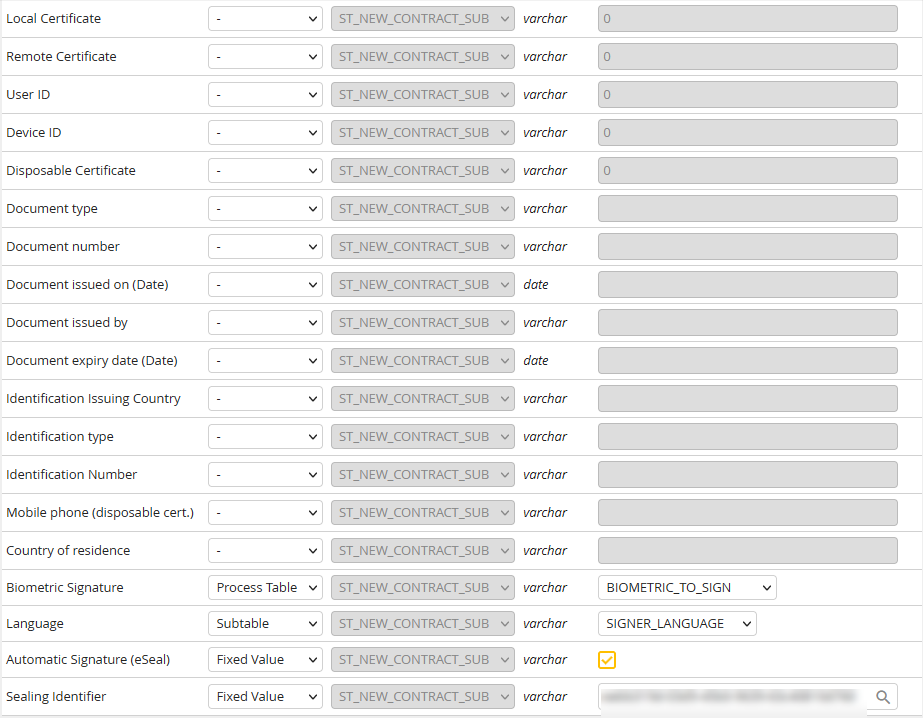
Disposable certificates are certificates for a qualified electronic signature that are only valid for a single business case. Separate input fields are required for these certificates, which only appear when you activate the "Disposable Certificate" option.
Eigenschaft |
Erklärung |
|---|---|
Disposable certificate |
Activates the signature via Disposable certificate. Please note: This option is only available with JobLink for Namirial license. |
Document type |
The document type used to identify the signer for the current case.
Allowed values (please use the given acronym): CI - Identity Card PA - Drivers License PASS - Passport
Please note: Depending in the law in your country, the driving license may only be used to legitimise the transaction if the passport or identity card were presented for initial identification. |
Document number |
The number of the document specified under document type (for example, the ID card number) |
Document issued on |
The date of issue of the document |
Document issued by |
The issuing authority of the document |
Document expiry date |
The expiry date of the document |
Identification Issuing Country |
The country where the document was issued. The country code (format: ISO 3166-1 alpha-2) must be given. |
Identification type |
Document type with which the certificate holder / signer is or was identified for the first time.
Allowed values (please use the given acronym): PASSPORT - Passport PERSONAL_NUMBER - National unique number ITALIAN_TAX_CODE - Tax code FOREIGN_TAX_CODE- Tax code NATIONAL_IDENTITY_CARD - Identity Card
Please note: In certain countries, depending on the law, only the passport and identity card may be used for initial identification. |
Identification number |
The number of the document specified under identification type (for example, the ID card number) |
Mobile phone |
The mobile phone number of the signer. The PIN code is sent to this number when the signer wishes to sign the document.
Please note: the mobile phone is linked to the name of the signer the first time it is used, i.e. it cannot be reused for any other signers afterwards. Please note: the mobile number must be entered in the international format, e.g. +49123456789. |
Country of residence |
Country of residence of the signer The country code (format: ISO 3166-1 alpha-2) must be given. |
Biometric Signature |
Enables biometric signatures with appropriate input devices.
Please note: The biometric signature is not possible in conjunction with the batch signature and multiple documents per envelope. Otherwise you will get the error messages Using biometric signatures is not allowed in batches accross multiple documents or For biometric signatures batches are only allowed if they affect one single document. |
Language |
Language, in which the eSignAnyWhere integration and the notification e-mail is displayed. The language must have ISO format (en, de, fr, ru, usw.). If nothing is defined, the language of the user is used for internal recipients and the JobRouter system language is used for external recipients. |
Automatic Signatur (eSeal) |
Flag whether the eSeal functionality should be used (1, checked), or not (0, unchecked). |
Sealing Identifier |
Identifier for the seal authorized representative to be able to identify the seal. |
Please note: Disposable certificates can only be used if a so-called LRA - Local Registration Authority - has been defined for the organisation stored in eSignAnyWhere. Please contact Namirial for this and for clarification of the organisational constraints. .
Please note: In order to use the Automatic Signature (eSeal) option, you need a valid Sealing Identifier.
