First of all, login to your Zapier account.
Create a new Zap and name it. Now search for the Webbhooks by Zapier app (See Notes). Choose Catch Hook as trigger and event.
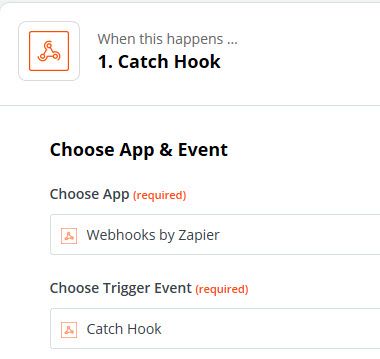
Then click Continue. Now you can copy the Webhook URL in the next window, which can be inserted into the JobRouter system activity later on.
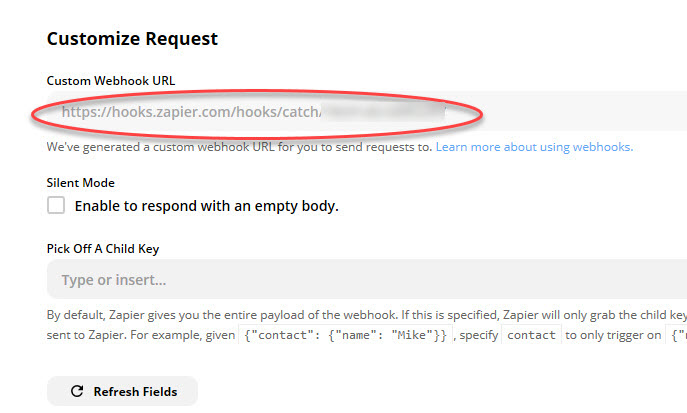
Webhook URL
After copying the Webhook URL into the JobRouter system activity, you can test the Zapier trigger as next step.
Before clicking Test Trigger, it is recommended to perform a test in the JobRouter process designer and the simulator.
Choose the respective step for the system activity in the simulator and start the simulator.
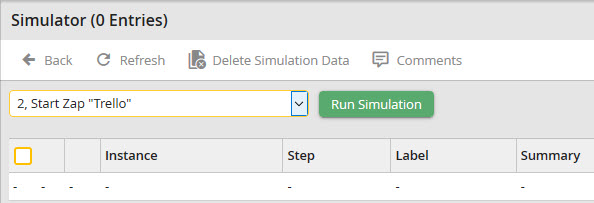
Simulator test Webhook
Now you can run the trigger test in Zapier.
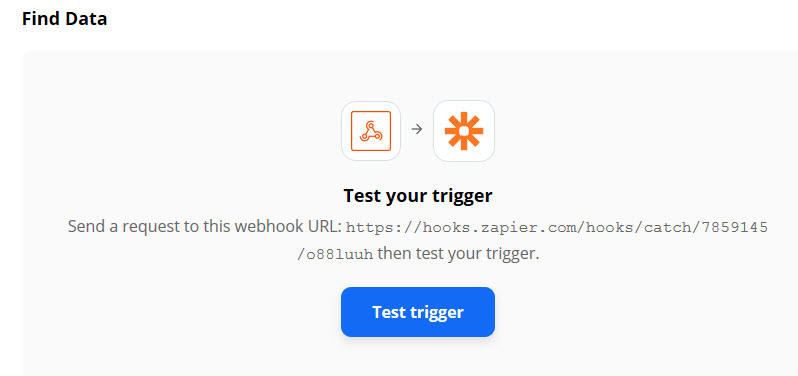
Zapier trigger test
If the test was successful, you will see a message in Zapier, saying We found a request.
Additionally, the fields are displayed that are transfered to Zapier in the JobRouter system activity.
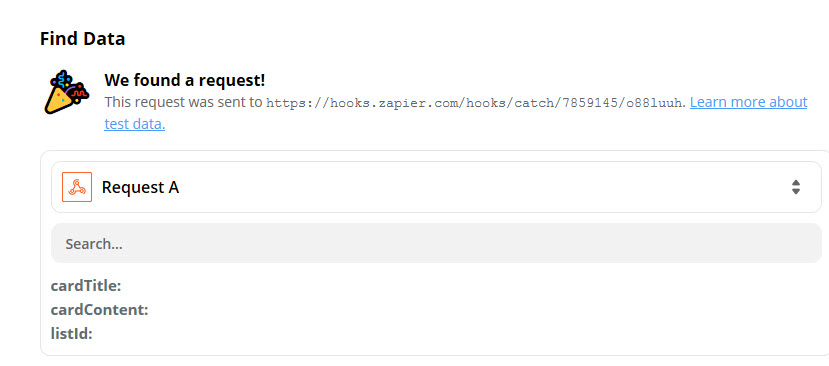
Test successfully performed
Now click Continue and select the app that should receive the JobRouter data. In our case, this is Trello.
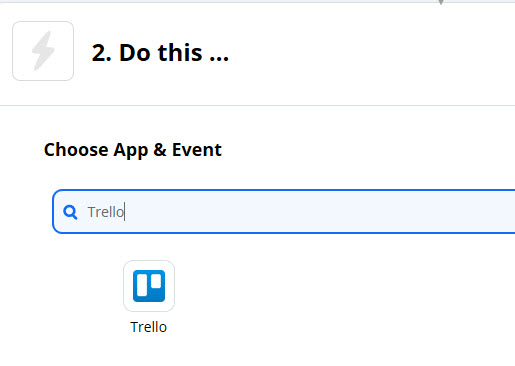
Choose app
Then choose the actions and events, which should be performed in Trello. In our example, it is Create Card.
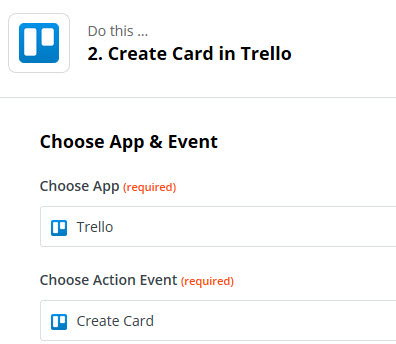
In the next step you must login to Zapier with your Trello account.
Enter your connection data, such as your user name and password, in the pop-up window.
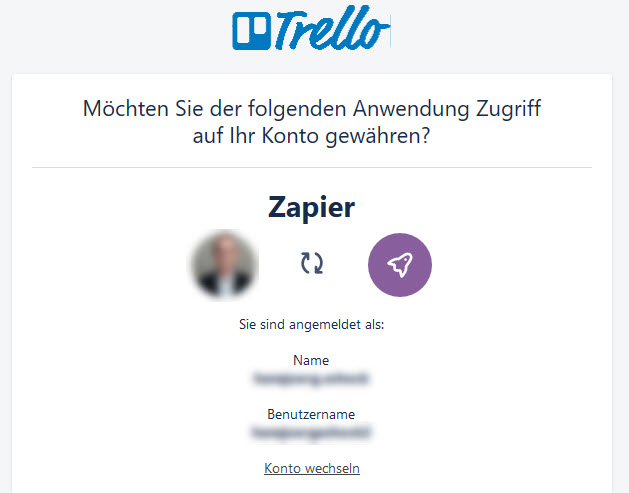
Anmeldung
Then click Enable.
The desired Trello board is selected in the Customize Card window.
Then the list name, the list ID, and the description from JobRouter are selected.
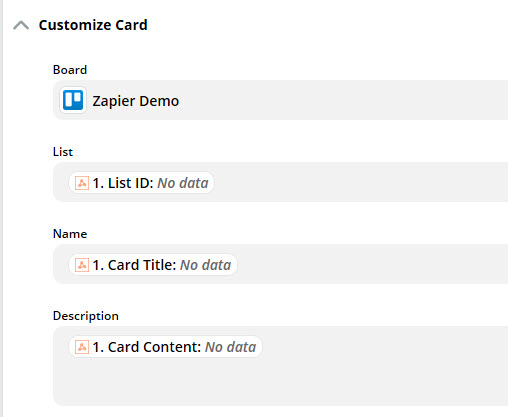
Customize card
After the configuration a test can be run.
Please note:
You may have to confirm your Zapier account first.
Please check your e-mail inbox to confirm your account.
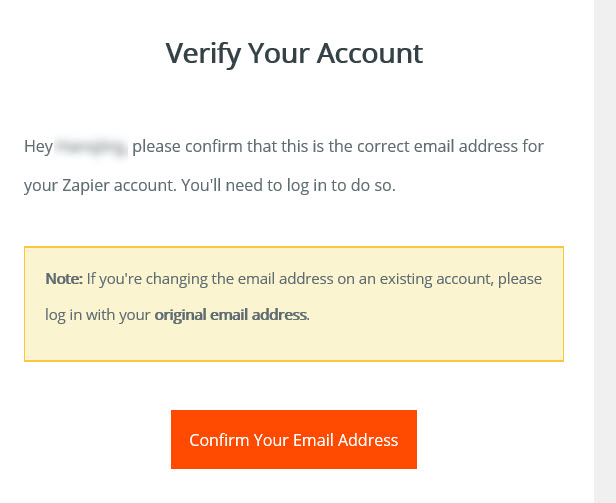
E-mail confirmation
Now the Zapier app was successfully created and configured.
