To be able to load and execute your system activity, JobActivity requires that the system activity files are placed in their own subdirectory of the systemactivities directory below the installation directory of JobActivity.
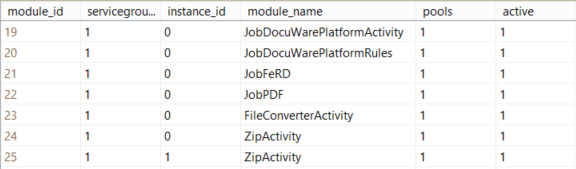
Furthermore, the system activity has to be added to the JobRouter database in the table JRMODULECFG.
The column module_id contains an auto-incrementing ID. A 1 has to be written in the column service_id. If you are using instances, write the ID of the instance you want to use the system activity for in the column instance_id. For each instance used, an individual entry has to be created. If you are not using instances, a 0 has to be written there. Write the name of the class of the system activity into the module_name column. System activities require to always have a 1 written into the pools column. Use the active column to define if the system activity is active in JobRouter. The values 1 and 0 are valid here.
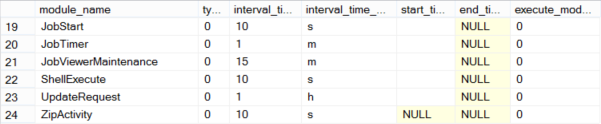
Furthermore, the system activity also needs an entry in the JRMODULETIMER table. The exact description of this table can be found in chapter Module settings of the Administration Manual.
In case the system activity uses further assemblies as references, their location has to be made known to the .NET runtime environment.
The easiest way to do this is adding the relative path to the directory to the additionalProbingPaths entry in the JobActivity.runtimeconfig.json file. E.g.:
{
"runtimeOptions": {
"tfm": "net10.0",
"framework": {
"name": "Microsoft.NETCore.App",
"version": "10.0.0"
},
"additionalProbingPaths": [
"systemactivities/MySystemactivityFolder1",
"systemactivities/MySystemactivityFolder2"
],
"configProperties": {
"System.Reflection.Metadata.MetadataUpdater.IsSupported": false
}
}
}
Please note: If external assemblies are not made known to the runtime environment this way, error states may occur during the execution of steps.
Alternatively, you can handle the result AppDomain.AssemblyResolve in your code or load the assemblies manually via Assembly.LoadFile.