The mobile view of a user form is mandatory to display the respective steps in the JobRouter App. As it is not possible to display all form elements in mobile view and some elements are not suitable for mobile view, only a restricted number of form elements is supported for mobile view. In return, there are additional form elements for the JobRouter App, such as a barcode scanner, which are not used in the Desktop Client. Please note additionally that the number of supported form elements for the mobile view also differs based on the fact if the view is displayed in the JobRouter App or the Mobile Client (call of the form in the web browser on a mobile device).
If no mobile view is defined for a form, the display of the form is performed in Desktop view in the web browser of the mobile device, too. The JobRouter App does not display steps without mobile view. They can only be edited on a Desktop Client.
Open the form editor as described in chapter Create and edit a form. Click the corresponding  symbol in the Form overview. Then select Mobile view in footer.
After changing to mobile view the mobile form can be edited.
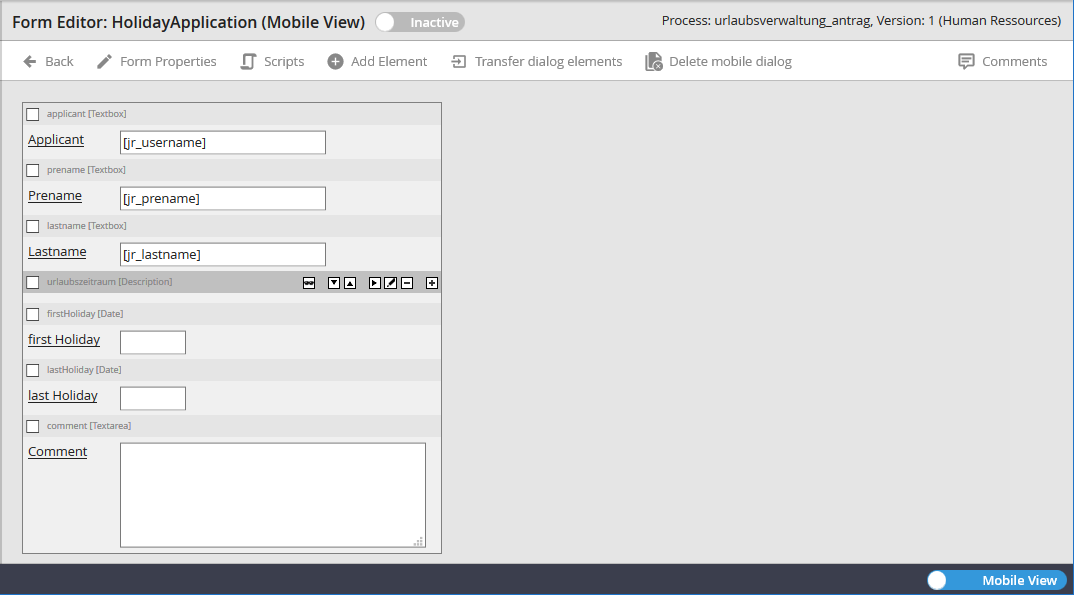
Edit dialog
In the mobile view the following additional functions are available:
Function |
Description |
|---|---|
Active/Inactive |
With this function the form can be enabled or disabled. If the mobile view was not enabled, the form will displayed in desktop view on the mobile device. |
Apply form elements |
Here form elements of the desktop view can be applied to mobile view. |
Delete mobile form |
Here mobile forms can be deleted. The status of the form becomes disable and it will be displayed in desktop view on the mobile device. |
The following restrictions apply to the mobile view for the Mobile Client:
•The form in the Mobile Client contains one page
•All elements are displayed in a single column on the page
•Only the following form element types are available: BLANK, CHECKBOX, DATE, DECIMAL, DESCRIPTION, FILE, JOBARCHIVESHOWDOCUMENT, LIST, RADIO, SQLLIST, TEXTAREA, TEXTBOX
•Only a subset of the JavaScript API functions can be used (see the JavaScript API Handbuch for a list of the available functions).
