To define the process duration and individual escalation actions, click Process escalation in the Designer navigation menu. The following input mask appears.
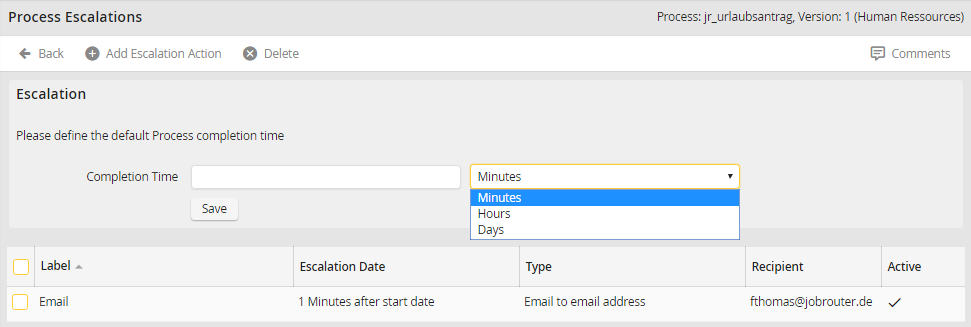
Process Escalation Rules
It shows an overview of all previously defined escalation actions for the process. In the field Completion time, specify the overall duration for your process by entering a number and a selecting a time unit (minutes, hours, days). Click Save to store your entry.
To add escalation actions to your process, click Add escalation action in the upper menu bar. The escalation actions form window appears.
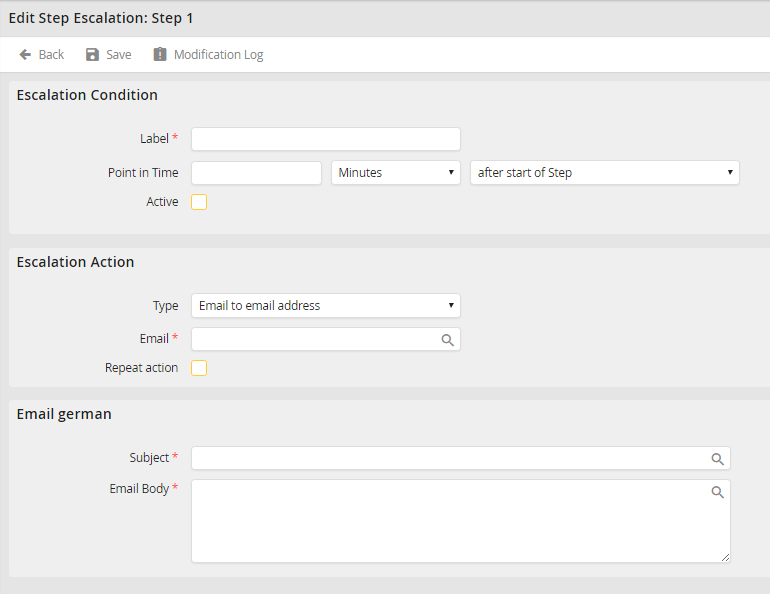
Adding / Modifying an Escalation Action
You can specify the following properties.
Escalation action properties |
Description |
|---|---|
Label |
Give the action a name. |
Point in time |
•Specify the point in time when the action is to start. •The point in time depends on the overall process duration. •Specify the point in time in terms of minutes, hours, or days. •Before reaching the processing deadline (See illustration Adding / Modifying an escalation action), you can give the point in time as a percentage. For example, you can have an e-mail sent off at the halfway point in the process (50%). |
Active |
Check the box to enable the action. |
Type •e-mail notification to e-mail address •e-mail notification to user
•e-mail notification to Job Function
•e-mail to process owner |
Choose an action to be executed. •Enter an e-mail address to which the e-mail should be sent. •Enter a user to which the e-mail should be sent. •Enter a Job Function to whose members the e-mail should be sent. •The e-mail is sent to all process owners for information. |
E-mail address / User / Job Function
|
•The menu changes dynamically. You can choose an e-mail address, a user, or even a Job Function appropriate to the chosen action under type. |
Repeating an action |
Tick the control box to repeat the action within a defined time interval. |
Time interval |
If repeat action is activated, the repetition interval can be defined in minutes, hours and days. |
Summary |
•Provide a subject for the message. •If the Process has multilingual capability, you can provide the subject in other languages. •The user sees the subject in the language assigned to him. •Clicking the symbol |
E-mail body |
•Compose the message. •You can enter the message text in multiple languages, if applicable, using process and system fields as well as process messages (See Subject). |
 allows accessing the process and system fields as well as the process messages.
Click Save to save your entries and be taken back to the Process escalation overview.
If you want to modify a process escalation action, click the respective action in the overview. The form window Add/Modify escalation action appears (see illustration Add/Modify escalation action). Make your changes as described above.
