Rules can be assigned or modified either by using the graphical designer or the Steps in the Designer navigation menu.
If you double-click the rule symbol  you will be redirected to the rule overview of the respective step. In case there are no rules defined for this step all the available rule types are displayed. Choose the type of rule that you would like to define.
You can create and edit rules directly via steps. Go to Steps in the Designer navigation menu. Click Rules for the desired step to see all the rules and rule groups previously assigned for that step.

Rules overview for a step
The overview shows the following properties.
Rule properties |
Description |
|---|---|
ID |
Incremented number of the rule. |
Active |
The rule is active. |
Label |
Label of the rule. |
Type |
Rule type. |
Subtable |
Name of the rule linked to a subtable. |
Next step |
The subsequent step activated by the rule (only for routing rules) |
Cancel |
If you activated the option Execute no further Rules for a rule, the consecutive processing of the rules stops here (See chapter Rule structure). |
Execution |
Execution conditions of a rule (See chapter Rule structure execution). |
Use the arrows  to
to  change the order of the rules.
To create a rule, click New in the action bar. A pop-up window then appears to show you an overview of the available rule types.
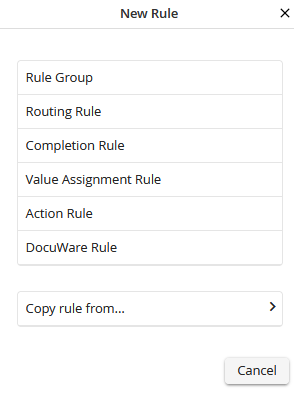
Rules types overview
These rules types are available.
Rule Type |
Description |
|---|---|
Rule group |
Group multiple rules in a rule group. |
Routing rule |
Controls the flow of your process. |
Completion Rule |
Determine the end of the Process flow. No further steps will be created. |
Value Assignment Rule |
Alter data values in the process table or subtables. |
Action Rule |
Launch various actions, such as copying file attachments or sending e-mail or exporting data. |
DocuWare Rule |
If the DocuWare module has been installed, the DocuWare rule can execute DocuWare actions. |
Select a rule type to see the corresponding editing mask. Cancel closes the pop-up window without having selected a rule type, and the rule overview for the selected step is displayed.
Rules can be copied from another step. For more information, see the corresponding section.
