In the Filter tab, you define a pre-filter for the inbox. It can be used to define which steps are accessible to the user. For example, you can limit the user to seeing only invoices whose total does not exceed a certain value (Invoice < $1000).
To define the individual filters, click filter in the Edit Process Inbox form window. The following input mask appears.
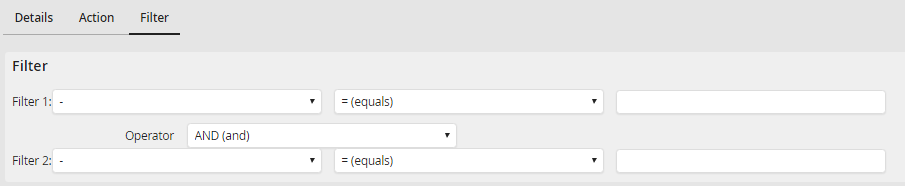
Modifying a Process Inbox - Filter
The filter consists of up to two conditions which you link together. You access process table fields and compare the contents against certain values. Use the drop-down list under Filter 1 to select a process table field upon which you wish to filter. Use the second pick-list to select the relational operator. Enter the value used for the comparison in the field on the right side. You can similarly define a second condition under Filter 2, then connect the two conditions with AND or OR.
The following table lists the logical operators you can use.
Logical operators |
Description |
|---|---|
= |
Is equal to |
<> |
not equal to |
< |
less than |
<= |
Is less than or equal to |
> |
greater than |
>= |
Is greater than or equal to |
LIKE |
Contains |
NOT LIKE |
Does not contain |
Click Save to save your entries and be taken back to the inbox overview.
Please note: If you define a filter with a condition, steps that do not match it, will not be displayed in the general input box. These must be included in another process input box.
Example:
In the process inbox Incoming Business Trip Requests a filter TRANSPORT = (equal to) car has been set for the column Transport. However, in the process table, more values ("train", "plane", etc.) are stored for this column. Therefore the filter will not apply and in the process input box such steps will not be displayed. The steps can be displayed for example with a process input box with filter TRANSPORT <> (not equal to) Auto.
