The PDF export function allows you to export individual process forms as a PDF file. The PDF file will be created automatically when the Rule is executed. JobRouter creates a sub folder using the process name in the output directory. The PDF files will be stored in this folder.
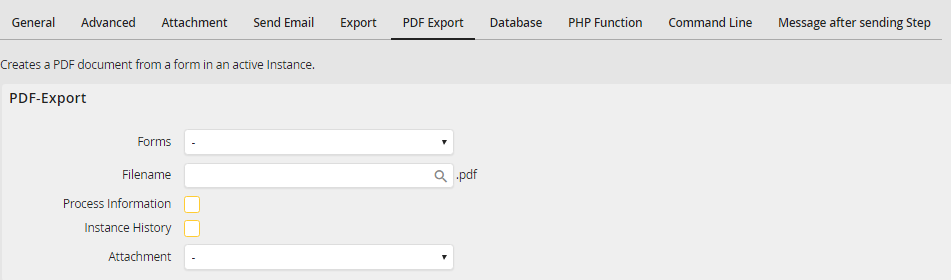
PDF export
In the Form field, select the desired form. The basic structure of the PDF document corresponds to the form. However, the form elements are listed in tabular form.
Please note: The following types of form elements are ignored during the PDF export: Button, Hidden, File, Attachment, IFrame, AlternaTIFF, JobLink for SAP, DWShowDocument, DWISShowDocument, DWWebClient, DWWebClientIFrame, DWWebClientShowDocument, DWWebClientShowDocumentIFrame. Furthermore, all for elements with the Hidden option activated will be ignored. The same is true for subtable view elements.
Assign a name for the PDF file in the field Filename. You can enter a static name or click the  symbol to use the process and system fields.
Please note: Invalid charachters in file names are replaced by underscores (e. g. (process field):inputform is converted to value_inputform).
If you check the Process information box, general information (process name, version, description) will appear in the PDF file header.
If you select the checkbox Instance history, the instance history will be added to the PDF as a table, sorted by indate. The following columns are exported: step, label, Job Function, user name, indate, outdate.
If your process table has attachment fields defined, you can select one of them in the Attachment pick list. The PDF document will be attached to the instance using this field.
