A row can have any number of columns in the desktop view. You can arrange these side by side in the form designer. Insert the form elements in the columns.
To create a new column click on the symbol  in the row field. The cursor context menu displays Add new column. The column is created directly. You have to set the column properties subsequently. Click on the symbol
  to open the form mask for column properties.
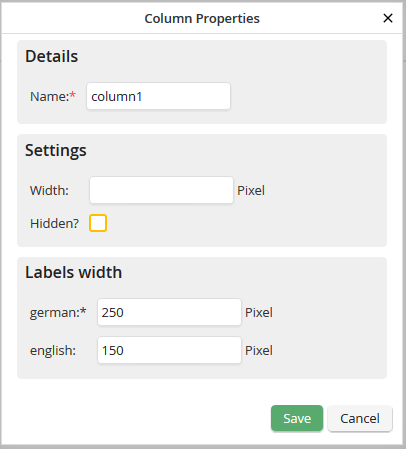
Edit column properties
You can edit the following properties:
Properties |
Description |
|---|---|
Name |
Insert the column name. |
Width |
Specify the column width in pixels. If you do not specify the width, it will be adapted automatically. |
Hidden? |
If the checkbox is activated, the column will be uploaded in a hidden form in the form form. |
Label width |
Here you can define the width of the form element labels for this column. You can set different widths for all available process languages. |
Via Save you save the properties and get back to the form designer. With Cancel you close the pop-up window without saving your entries.
The columns are counted continuously. If a column is deleted, the ID of this column will not be assigned again. If you create a new column, it will get the following ID.
